How to Open a Port in CSF Firewall on Linux

ConfigServer Security & Firewall (CSF) is a robust firewall solution widely used on Linux servers. It simplifies managing incoming and outgoing traffic, allowing you to enhance your server’s security posture. In this guide, we’ll walk you through the steps of opening a port in CSF and provide tips on how to do it efficiently.
If you don’t have CSF installed on your system, check out this tutorial on How to install CSF on Linux.
Table of Contents
- Understanding CSF and Firewall Rules
- Checking the Current Firewall Status
- Locating the CSF Configuration File
- Editing the Configuration to Open a Port
- Restarting CSF and LFD
- Verifying Open Ports
- Efficient Tips for Managing CSF
- Conclusion
Understanding CSF and Firewall Rules
CSF uses iptables underneath to control incoming and outgoing connections. By defining allowed ports, you ensure that only legitimate traffic reaches your services. Ensuring that only the necessary ports are open reduces the server’s attack surface and improves overall security.
Checking the Current Firewall Status
Before making changes, verify that CSF is running and examine which ports are currently open. You can use the following command:
sudo csf -sThis displays the current firewall rules to which CSF applies.
Locating the CSF Configuration File
The main CSF configuration file is typically located at:
/etc/csf/csf.confThis file contains various parameters, including allowed inbound and outbound ports. Make a backup before making any changes:
sudo cp /etc/csf/csf.conf /etc/csf/csf.conf.bakEditing the Configuration to Open a Port
Open the configuration file using your preferred text editor:
sudo nano /etc/csf/csf.conf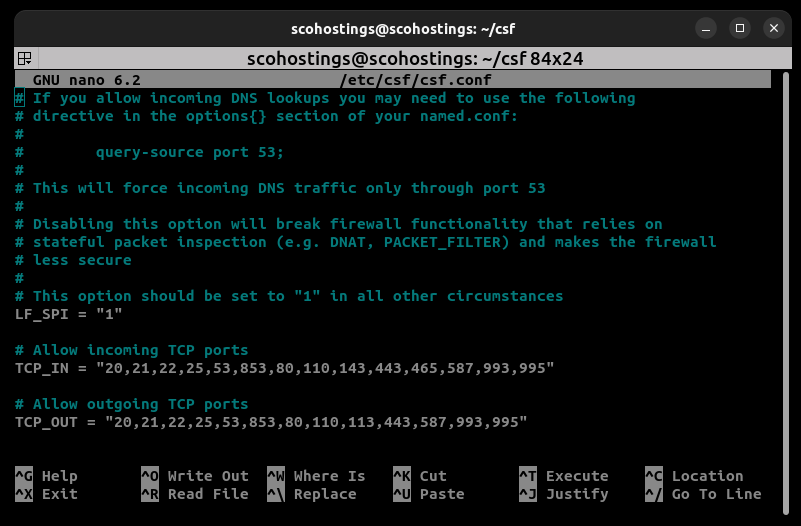
Look for the lines defining TCP_IN or UDP_IN, depending on the type of traffic you need. For example, to open TCP port 8080, find the TCP_IN line and add “8080” to the list:
TCP_IN = "20,21,22,25,53,853,80,110,143,443,465,587,993,995,8080"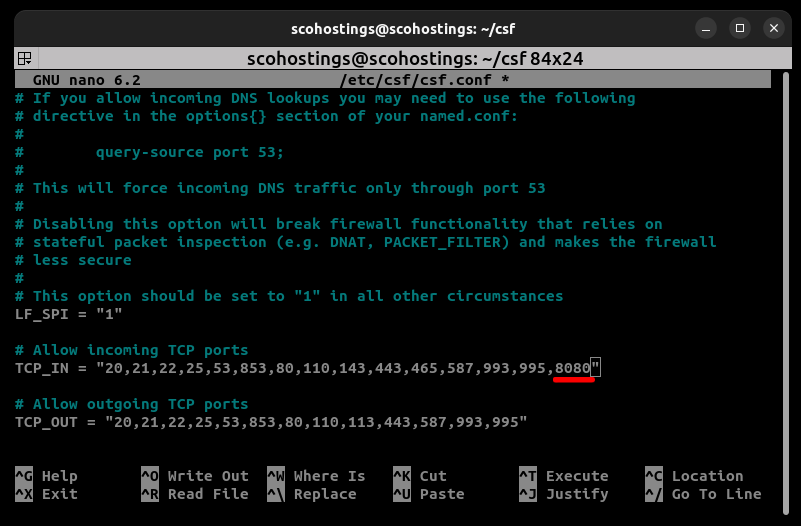
Save the changes by pressing the keys CTRL+X and then Y, and ENTER to exit the editor.
Restarting CSF and LFD
After updating the configuration, restart CSF and LFD (Login Failure Daemon) to apply the new rules:
sudo csf -rThis command reloads the CSF and LFD configurations, activating the changes.
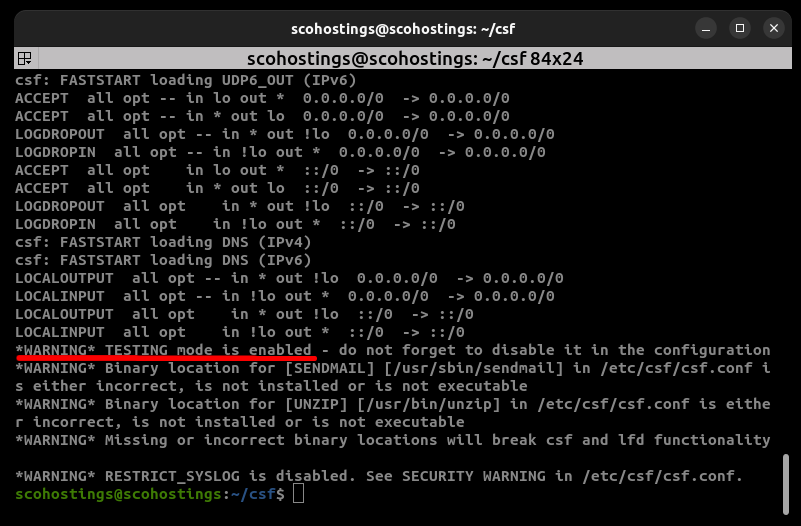
If you see this message WARNING TESTING mode is enabled just uncomment out those two lines from the config line /etc/csf/csf.conf
Open the configuration file again and uncomment those two lines, just as you will see in the below picture:
sudo nano /etc/csf/csf.confOld:
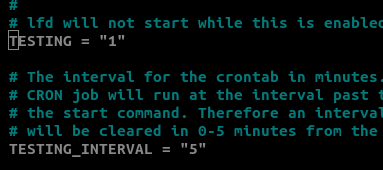
New:
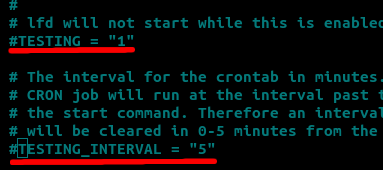
Now restart the CSF firewall:
sudo csf -rVerifying Open Ports
To ensure that your newly opened port is active, use tools like netstat or ss to verify the port’s status:
sudo ss -tulpn | grep 8080The configuration is successful if you see your service listening on the port.
Efficient Tips for Managing CSF
- Backup Before Changes: Always keep a backup of your
csf.conffile. This ensures you can revert if something goes wrong. - Use Testing Mode: CSF provides a testing mode. Enable it before making large-scale changes so you can revert easily if you encounter issues.
- Limit Access by IP: If opening a port for a specific service, consider restricting it to known IP addresses for added security.
- Automate Common Tasks: If you regularly open or close ports, consider scripting these changes to reduce manual errors.
Conclusion
Opening a port in CSF on Linux is straightforward when you understand the configuration file and commands involved. Following the steps above and applying best practices, you can efficiently manage your firewall settings, ensuring the right balance between accessibility and security.
- #CSF firewall
- #CSF firewall configuration
- #CSF tips
- #Firewall Configuration
- #Linux firewall
- #Linux security
- #open port CSF
- #Open port in CSF
Comments (0)
Sign in to join the discussion
Sign in

