How to Fix NVIDIA Driver Unmet Dependencies on Ubuntu 24.04

Installing or upgrading NVIDIA drivers on Ubuntu is usually straightforward, but problems can appear when Ubuntu packages, CUDA repositories, i386 libraries, and older NVIDIA package versions are mixed together.
In this tutorial, I will show you how I fixed an NVIDIA Driver 580 issue on Ubuntu 24.04 where apt failed with unmet dependencies, nvidia-prime conflicts, and dpkg overwrite errors.
This guide is based on a real Ubuntu 24.04.3 LTS desktop system using an NVIDIA GeForce RTX 5060 Ti and the nvidia-driver-580-open package.
The Problem
The first error looked like this:
The following packages have unmet dependencies:
nvidia-driver-580-open : Conflicts: nvidia-prime but 0.8.17.2 is to be installed
E: Unable to correct problems, you have held broken packages.At first, this looked like a simple nvidia-prime problem. However, nvidia-prime was not actually installed:
apt-cache policy nvidia-primeOutput:
nvidia-prime:
Installed: (none)
Candidate: 0.8.17.2The real issue was that apt wanted to install nvidia-prime as a recommended package, while nvidia-driver-580-open conflicted with it.
On a desktop PC with a dedicated NVIDIA GPU, nvidia-prime is usually not required. It is mainly useful for hybrid laptop setups where the system switches between integrated graphics and NVIDIA graphics.
Ubuntu officially documents the ubuntu-drivers tool as the standard way to install NVIDIA drivers on Ubuntu systems. NVIDIA also provides CUDA installation documentation, but mixing CUDA repositories and Ubuntu driver packages can sometimes create dependency conflicts if versions are not aligned.
System Used in This Example
The affected system was:
OS: Ubuntu 24.04.3 LTS Kernel: 6.17.0-29-generic GPU: NVIDIA GeForce RTX 5060 Ti Driver target: nvidia-driver-580-open Desktop: GNOME on X11
The system also had a local CUDA repository enabled:
file:/var/cuda-repo-ubuntu2404-13-0-local
That local CUDA repository still contained older NVIDIA 580 packages, while Ubuntu’s security repository had newer 580.159.03 packages.
This kind of mixed package source setup can cause apt and dpkg to pull NVIDIA components from different places.
Step 1: Check NVIDIA Package Sources
Start by checking where Ubuntu is pulling NVIDIA packages from:
apt-cache policy nvidia-driver-580-open nvidia-driver-580 nvidia-prime nvidia-utils-580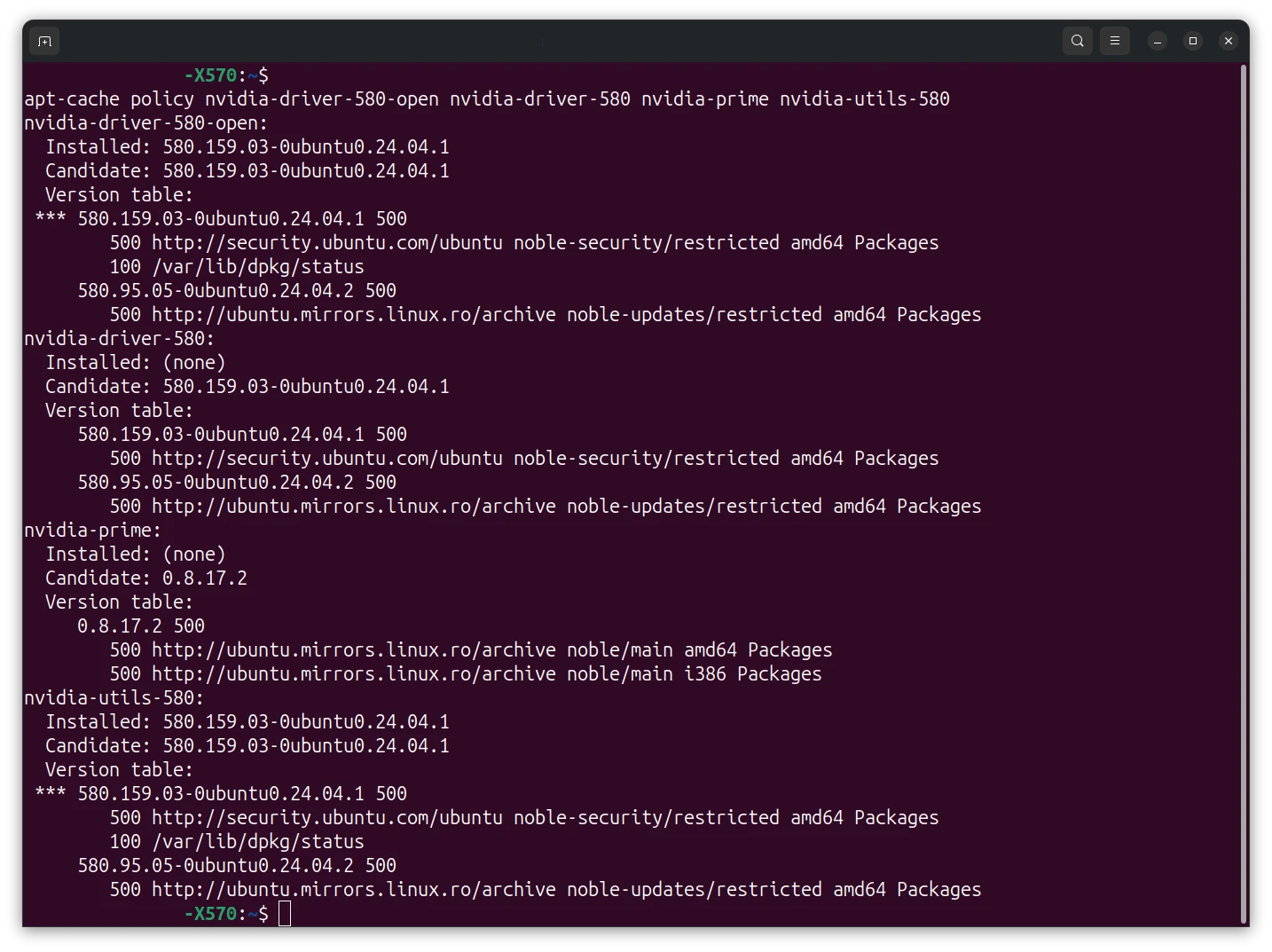
Also check if any packages are held:
apt-mark showholdThen check for CUDA or NVIDIA repositories:
grep -R "developer.download.nvidia\|graphics-drivers\|cuda" /etc/apt/sources.list /etc/apt/sources.list.d/ 2>/dev/nullIn my case, the important clue was this local CUDA repository:
file:/var/cuda-repo-ubuntu2404-13-0-local
Step 2: Disable the Local CUDA Repository Temporarily
If your NVIDIA driver packages are coming from both Ubuntu and a local CUDA repository, temporarily disable the CUDA source.
First list the files:
ls /etc/apt/sources.list.d/ | grep -i cudaThen move the CUDA source file away:
sudo mkdir -p /root/disabled-apt-sources
sudo mv /etc/apt/sources.list.d/cuda-ubuntu2404-13-0-local.list /root/disabled-apt-sources/ 2>/dev/null
sudo mv /etc/apt/sources.list.d/cuda-ubuntu2404-13-0-local.sources /root/disabled-apt-sources/ 2>/dev/nullNote: Change this cuda-ubuntu2404-13-0-local.list whith the one you found from this command ls /etc/apt/sources.list.d/ | grep -i cuda .
Update package lists:
sudo apt updateThis does not necessarily remove CUDA from your system. It only prevents apt from mixing driver packages from the local CUDA repository with Ubuntu’s own driver packages.
Step 3: Install NVIDIA 580 Without Recommended Packages
Because nvidia-prime was being pulled as a recommended package, the solution was to install the driver without recommendations:
sudo apt install --no-install-recommends nvidia-driver-580-open nvidia-utils-580This avoids installing nvidia-prime.
On a desktop with a dedicated NVIDIA GPU, this is usually fine.
On a laptop with hybrid Intel/AMD + NVIDIA graphics, you may need nvidia-prime, so this specific fix may not be the right choice for that setup.
Step 4: Fix dpkg Overwrite Errors
During the upgrade, another problem appeared:
dpkg: error processing archive ... libnvidia-gl-580 ... trying to overwrite '/usr/share/egl/egl_external_platform.d/20_nvidia_xcb.json', which is also in package libnvidia-egl-xcb1:i386
There were also errors like:
trying to overwrite '/usr/lib/x86_64-linux-gnu/libnvidia-opticalflow.so.1', which is also in package libnvidia-compute-580:amd64 580.126.09-1ubuntu1
This happened because old NVIDIA package files from version 580.126.09 conflicted with the newer Ubuntu package layout in version 580.159.03.
To remove the old conflicting EGL packages:
sudo dpkg --remove --force-depends \
libnvidia-egl-xcb1:amd64 \
libnvidia-egl-xcb1:i386 \
libnvidia-egl-xlib1:amd64 \
libnvidia-egl-xlib1:i386Then finish the repair using:
sudo apt -o Dpkg::Options::="--force-overwrite" --fix-broken installThen reinstall the target driver:
sudo apt install --no-install-recommends \
nvidia-driver-580-open \
nvidia-utils-580Finally, configure any unfinished packages:
sudo dpkg --configure -a
sudo apt --fix-broken installStep 5: Reboot
After the package state is clean, reboot:
sudo rebootDo not reboot while apt or dpkg is still broken unless you have no other choice.
Step 6: Verify the NVIDIA Driver
After reboot, check the driver:
nvidia-smiA successful result should show something like:
+-----------------------------------------------------------------------------------------+ | NVIDIA-SMI 580.159.03 Driver Version: 580.159.03 CUDA Version: 13.0 | +-----------------------------------------+------------------------+----------------------+ | GPU Name Persistence-M | Bus-Id Disp.A | Volatile Uncorr. ECC | | Fan Temp Perf Pwr:Usage/Cap | Memory-Usage | GPU-Util Compute M. | | | | MIG M. | |=========================================+========================+======================| | 0 NVIDIA GeForce RTX 5060 Ti Off | 00000000:0A:00.0 On | N/A | | 0% 40C P5 9W / 180W | 727MiB / 16311MiB | 3% Default | | | | N/A | +-----------------------------------------+------------------------+----------------------+
Also check installed NVIDIA packages:
dpkg -l | grep -E 'nvidia-driver-580|nvidia-utils-580|libnvidia-compute-580|libnvidia-gl-580'In my case, the fixed versions were:
ii libnvidia-compute-580:amd64 580.159.03-0ubuntu0.24.04.1 amd64 NVIDIA libcompute package ii libnvidia-compute-580:i386 580.159.03-0ubuntu0.24.04.1 i386 NVIDIA libcompute package ii libnvidia-gl-580:amd64 580.159.03-0ubuntu0.24.04.1 amd64 NVIDIA OpenGL/GLX/EGL/GLES GLVND libraries and Vulkan ICD ii libnvidia-gl-580:i386 580.159.03-0ubuntu0.24.04.1 i386 NVIDIA OpenGL/GLX/EGL/GLES GLVND libraries and Vulkan ICD ii nvidia-driver-580-open 580.159.03-0ubuntu0.24.04.1 amd64 NVIDIA driver (open kernel) metapackage ii nvidia-utils-580 580.159.03-0ubuntu0.24.04.1 amd64 NVIDIA driver support binaries
At this point, the NVIDIA driver was working correctly.
Step 7: Check and Clear Old Crash Reports
After the reboot, Ubuntu may show crash report popups such as:
System program problem detected
In this case, the reports were old package installation crash files from the failed NVIDIA upgrade.
Check them with:
ls -lah /var/crashTo inspect crash report summaries:
for f in /var/crash/*.crash; do
echo
echo "===== $f ====="
grep -E '^(ProblemType|Package|ExecutablePath|ProcCmdline|Title|Date|Signal|SegvAnalysis|StacktraceTop):' "$f" | head -80
doneIn my case, the crash files were related to packages such as:
/var/crash/libnvidia-common-580.0.crash /var/crash/libnvidia-decode-580.0.crash /var/crash/libnvidia-gl-580.0.crash
These were not new GPU crashes. They were old Apport reports created when the NVIDIA package installation failed.
Ubuntu’s Apport system stores crash reports in /var/crash/, as documented by Ubuntu.
After confirming they were stale package crash reports, I removed them:
sudo rm -f /var/crash/libnvidia-*.crash
sudo rm -f /var/crash/libnvidia-*.upload
sudo rm -f /var/crash/libnvidia-*.uploadedOr, to clear all crash reports:
sudo rm -f /var/crash/*Then check again:
ls -lah /var/crashFinal Verification Commands
Once everything is fixed, run:
sudo apt update
sudo dpkg --configure -a
sudo apt --fix-broken install
sudo apt full-upgrade
nvidia-smiA clean result should look like:
0 upgraded, 0 newly installed, 0 to remove
And nvidia-smi should show the correct NVIDIA driver version.
Summary
The fix was:
- Identify that `nvidia-prime` was not installed but was being pulled as a recommended package.
- Disable the local CUDA repository temporarily to avoid mixed NVIDIA package versions.
- Install `nvidia-driver-580-open` with `–no-install-recommends`.
- Resolve old NVIDIA package overwrite conflicts with `dpkg –remove –force-depends` and `–force-overwrite`.
- Repair packages using `dpkg –configure -a` and `apt –fix-broken install`.
- Reboot and verify with `nvidia-smi`.
- Remove old `/var/crash/` reports created during the failed package upgrade.
In the end, the system successfully ran NVIDIA Driver 580.159.03 on Ubuntu 24.04 with the open NVIDIA kernel driver package.
FAQ
Why did nvidia-driver-580-open conflict with nvidia-prime?
nvidia-prime is mainly used for hybrid graphics setups, usually laptops with integrated graphics plus NVIDIA graphics. On a desktop with a dedicated NVIDIA GPU, it is usually unnecessary. In this case, apt tried to install it as a recommended package, but nvidia-driver-580-open conflicted with it.
Is it safe to use --no-install-recommends?
Yes, when you know the recommended package is not needed. In this case, the system was a desktop PC with a dedicated NVIDIA GPU, so avoiding nvidia-prime was fine.
Should I remove the CUDA repository?
Not always. But if the CUDA repository is providing older NVIDIA driver packages while Ubuntu is providing newer ones, temporarily disabling it can help avoid mixed package versions. You can re-enable CUDA later if needed, but it is usually better to keep the NVIDIA driver itself managed by Ubuntu packages.
What does --force-overwrite do?
It tells dpkg to allow a package to overwrite a file that another package currently owns. Use it carefully. In this case, it was needed because NVIDIA changed where some files belonged between package versions.
Why did Ubuntu show crash reports after the fix?
The crash reports were old Apport package crash reports from the failed NVIDIA upgrade. Once the driver was working and the package state was clean, those old files could be removed from /var/crash/.
How do I confirm the NVIDIA driver is working?
Run:
nvidia-smiIf it shows your GPU, driver version, memory usage, and running processes, the NVIDIA driver is loaded and working.
This tutorial is based on a real troubleshooting session on Ubuntu 24.04.3 LTS with an NVIDIA GeForce RTX 5060 Ti. The issue involved mixed NVIDIA 580 package versions, a local CUDA repository,
nvidia-primedependency conflicts, and stale Apport crash reports after the package repair.
Comments (0)
Sign in to join the discussion
Sign in

