How to Install Composer on Ubuntu 24.04 and 26.04

As of May 2026, Packagist — Composer’s central package registry — hosts over 454,000 PHP packages across more than 182 billion total installs (Packagist.org, 2026). That scale makes one thing clear: most of the modern PHP project depends on Composer to pull in libraries, manage autoloading, and keep dependencies consistent across environments. Whether you’re running Ubuntu 24.04 (Noble Numbat) or the newer 26.04 LTS (Resolute Raccoon), this guide gives you the exact commands to get Composer installed, hash-verified, and working in under ten minutes.
You’ll also see why the hash verification step isn’t optional, how to handle the four most common installation errors, and how the two Ubuntu releases differ due to their default PHP versions.
Key Takeaways
- In 2026, Packagist hosts over 454,000 packages and over 182.6 billion installs, making Composer the standard for PHP dependency management (Packagist.org, 2026).
- Ubuntu 24.04 ships PHP 8.3; Ubuntu 26.04 ships PHP 8.5 — Composer 2.x supports both with identical install commands.
- Always verify the SHA-384 installer hash before running it; skipping that step opens a supply-chain attack vector.
- The global install method (
/usr/local/bin) is the right choice for Ubuntu servers and shared development machines.
What Is Composer and Why Does It Matter for PHP Development?
PHP is used by 71.1% of all websites whose server-side programming language is known (W3Techs, May 2026). Handling dependencies manually across that volume of projects would be unmanageable — and that’s exactly the problem Composer solves. It reads a composer.json file in your project directory, resolves the package versions allowed by your version constraints, installs dependencies into vendor/, records exact resolved versions in composer.lock, and generates a project autoloader, including PSR-4 mappings when configured.
By default, Composer does not install project dependencies into a shared system-level PHP include path. Each project gets its own vendor/ directory, and a composer.lock file records the exact resolved versions. That isolation means two projects on the same server can depend on different versions of the same library without conflicting. For modern frameworks like Laravel and Symfony, Composer is part of the standard setup workflow; CodeIgniter 4 also supports Composer, although it still offers a manual installation method.
What made Composer a watershed moment was the contrast with its predecessor, PEAR. PEAR installed libraries into a global PHP include path, which meant upgrading one project’s dependencies could silently break another running on the same server. Composer’s per-project isolation — plus a lockfile that pins exact resolved versions — eliminated that class of problem and is why the PHP ecosystem standardized on it within a few years of its 2012 release.
Server-Side Programming Language Market Share, May 2026 Server-Side Language Market Share (May 2026) PHP Ruby JavaScript Java ASP.NET 71.1% 6.8% 6.4% 5.4% 4.3% Source: W3Techs, May 2026 PHP leads all server-side languages by a large margin — Source: W3Techs, May 2026According to W3Techs (May 2026), PHP powers 71.1% of all websites with a known server-side language — more than ten times the share of Ruby or JavaScript. Composer is PHP’s standard dependency manager, relied on by every major PHP framework and used by over 19% of professional developers who write PHP daily (Stack Overflow Developer Survey, 2025). For Ubuntu server administrators, that means setting it up is a routine first step on any new PHP environment.
What Are the Prerequisites for Installing Composer?

Ubuntu is widely used for PHP hosting and cloud server deployments, and Canonical describes Ubuntu as one of the leading guest operating systems across public clouds. Before installing Composer on Ubuntu, make sure your system has three things ready: a working PHP CLI installation(minimum 8.1 version), the common PHP extensions needed by modern PHP projects, and archive tools such as unzip for extracting package downloads.
- sudo access — required if you want to install Composer globally into
/usr/local/bin - PHP CLI — the latest Composer requires PHP
7.2.5or higher, although PHP 8.1+ is a better practical baseline for modern PHP applications - Common PHP extensions:
mbstring,xml,zip, andcurl— not all are required by Composer itself, but they are commonly needed by PHP frameworks and packages - unzip — recommended so Composer can extract package archives cleanly; Composer can also use tools such as
7z/7zz,gzip,tar, andxz - curl command-line tool — useful for downloading the Composer installer script
Don’t have PHP installed yet? The next section covers that exactly. If PHP is already present, run php -v to confirm the CLI version and php -m to list loaded modules before moving on. For a typical Laravel, Symfony, or CodeIgniter server, you usually want to see extensions such as mbstring, xml, zip, and curl available in that list.
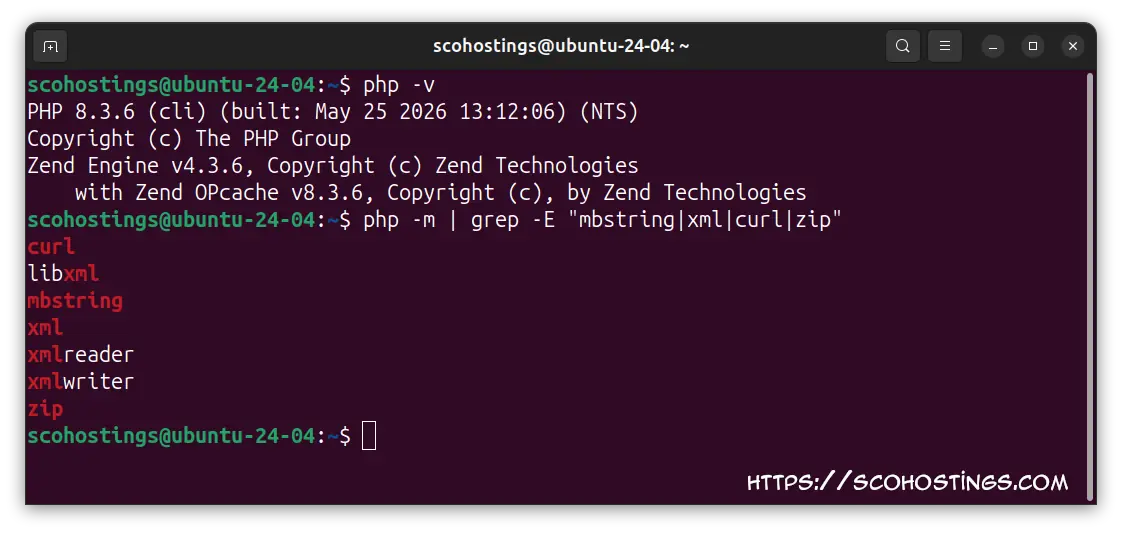
Run this command to check if those extensionsmbstring, xml, zip, and curl are installed:
php -m | grep -E "mbstring|xml|curl|zip"Example output(in the bellow example is Ubuntu 24.04 LTS but the same output should be in the 26.04 version too whith just different php version 8.5.x):
How Do You Install PHP on Ubuntu 24.04 and 26.04?
As of June 2025, PHP 8.3 was the most-deployed version in Composer/Packagist download statistics at 34.0%, followed by PHP 8.2 at 24.8% and PHP 8.4 at 13.7% (Stitcher.io / Packagist data, June 2025). Ubuntu 24.04 ships PHP 8.3 from its default apt repositories; Ubuntu 26.04 ships PHP 8.5. Both versions are supported by current Composer 2.x, and the installation commands below are identical on both releases.
Start by refreshing your package index and upgrading any stale packages:
sudo apt update && sudo apt upgrade -yThen install PHP and the extensions Composer requires:
On Ubuntu 24.04 (PHP 8.3 by default)
sudo apt install php php-cli php-mbstring php-xml php-curl php-zip unzip -yOn Ubuntu 26.04 (PHP 8.5 by default)
sudo apt install php php-cli php-mbstring php-xml php-curl php-zip unzip -yThe command is identical. Ubuntu’s apt resolver picks the PHP version that matches your release. Confirm the installation with:
php -vYou’ll see output similar to this on Ubuntu 24.04:
PHP 8.3.x (cli) (built: ...) (NTS) Copyright (c) The PHP Group Zend Engine v4.3.x, Copyright (c) Zend Technologies with Zend OPcache v8.3.x, Copyright (c), by Zend Technologies
On Ubuntu 26.04 the version line will read PHP 8.5.x instead. Either output confirms you’re ready to install Composer.
How Do You Download and Install Composer Globally on Ubuntu?
The Composer project recommends downloading via the official PHP installer script and verifying it with a SHA-384 hash before execution — the same approach documented at getcomposer.org. Why does that matter? The installer is a PHP file that runs with whatever privileges you hand it. Skipping verification means trusting any file that arrived from the network, which is a meaningful risk on shared servers or behind intercepting proxies.
Step 1 — Download the Installer
curl -sS https://getcomposer.org/installer -o /tmp/composer-setup.phpStep 2 — Verify the SHA-384 Hash
HASH="$(curl -fsSL https://composer.github.io/installer.sig)"
echo "$HASH /tmp/composer-setup.php" | sha384sum --checkA successful check prints /tmp/composer-setup.php: OK. If you see a failure message instead, delete the file and re-download it — don’t proceed.
rm /tmp/composer-setup.php # if hash check failed — start overStep 3 — Install Composer Globally
sudo php /tmp/composer-setup.php --install-dir=/usr/local/bin --filename=composerThe --install-dir flag places the binary in /usr/local/bin, which is on the default PATH for every user on Ubuntu. The --filename=composer flag lets you invoke it as composer rather than composer.phar.
Step 4 — Remove the Installer
rm /tmp/composer-setup.phpCleaning up the installer is a habit worth keeping. Files in /tmp are world-readable on Ubuntu by default, and an executable PHP file left there needlessly expands the attack surface on multi-user servers.
Step 5 — Verify the Installation
composer --versionYou’ll see output like:
Composer version 2.x.x 2026-XX-XX XX:XX:XXComposer is now available system-wide. Every user on the machine can run it, and every project directory can invoke it without maintaining a separate binary per project.
Step 6 — Run Composer Diagnostics
After installing Composer, run the built-in diagnostic command to confirm that PHP, network access, archive support, and Composer’s verification settings are working correctly:
composer diagnoseIf you see zip: extension not loaded, install the PHP ZIP extension:
sudo apt install php-zip -yIf you see Missing pubkey for tags verification or Missing pubkey for dev verification, run:
composer self-update --update-keysNote: Run the command as the same Linux user that normally runs Composer. If you manage Composer globally with sudo, use sudo -H composer self-update --update-keys instead.
Composer will prompt you to enter the official Dev/Snapshot and Tags public keys. Copy them only from Composer’s official public keys page, not from random tutorials or forum posts.
Composer’s global install method — placing the binary in /usr/local/bin via the official PHP installer with hash verification — is the approach recommended by getcomposer.org. It works identically on Ubuntu 24.04 (PHP 8.3) and Ubuntu 26.04 (PHP 8.5), since Composer 2.x requires only PHP 7.2.5 or higher to run.
How Do You Verify and Use Your Composer Installation?
With Composer installed, you can scaffold projects, pull in packages, and keep dependencies in sync across environments. These are the commands you’ll use most often.
Verify Composer Is Installed
composer --versionIf Composer is installed correctly, this prints the installed Composer version and release date.
Create a New Laravel Project
composer create-project laravel/laravel my-appThis uses Composer’s create-project command to create a new project from the laravel/laravel package. Laravel’s current documentation also promotes the Laravel installer workflow, but composer create-project remains a valid Composer-based way to bootstrap a Laravel application.
Install Dependencies Listed in composer.json
cd my-project
composer installIf a composer.lock file exists, composer install installs the exact versions recorded in that lock file. This is the command you normally use after cloning a project, deploying code, or pulling changes from version control.
Require a New Package
composer require guzzlehttp/guzzleThis adds the package to composer.json, resolves a compatible version, updates composer.lock, and installs the package into vendor/.
Update All Packages to Their Latest Allowed Versions
composer updateThis updates dependencies to the latest versions allowed by your composer.json constraints and writes the new resolved versions to composer.lock. Use this carefully on development machines; production deployments normally use composer install instead.
List Installed Packages
composer showUpdate Composer Itself
sudo composer self-updateUse sudo -H composer self-update --stable to force the stable channel, or sudo -H composer self-update --preview to test preview releases. The stable channel is already the default, so --stable is usually optional. Always run composer --version first so you know what version you’re upgrading from.
Note: composer self-update only applies to PHAR-based Composer installs, such as the manual global install method used earlier in this guide. If Composer was installed from Ubuntu’s package manager, the self-update command may not be available.
Video: Installing Composer on Ubuntu 24.04 LTS
How Do You Troubleshoot Common Composer Installation Errors?
Most Composer installation failures on Ubuntu trace back to three root causes: a missing PHP extension (mbstring, xml, or curl), a network restriction blocking getcomposer.org or Packagist, or an allow_url_fopen directive set to Off in php.ini. Identifying which applies takes under two minutes using the diagnostics below.
composer diagnoseIf Composer is not installed yet, use the checks below to narrow down the problem.
Warning: “Missing pubkey for tags verification”
This warning means Composer does not yet have the public keys used to verify Composer PHAR updates. It usually does not prevent normal package installation, but it should be fixed before relying on composer self-update.
composer self-update --update-keysWhen prompted, copy the Dev/Snapshot and Tags public keys from Composer’s official public keys page. Then run composer diagnose again.
Warning: “zip: extension not loaded, unzip present”
This means the system has the unzip command, but PHP’s ZIP extension is not loaded. Composer can still extract packages using unzip, but installing php-zip removes the warning and gives PHP projects access to the ZipArchive class.
sudo apt install php-zip -yThen confirm it is loaded:
php -m | grep zipError: “The PHP mbstring extension is missing”
sudo apt install php-mbstring -yIf it still does not appear, your active PHP CLI version and the installed extension package may be mismatched. Check your PHP version:
php -vOn Ubuntu 24.04, the default PHP version is 8.3. On Ubuntu 26.04, the default PHP version is 8.5. If you use a custom PHP repository, install the matching extension package explicitly, for example:
sudo apt install php8.3-mbstring -yError: “The ‘allow_url_fopen’ setting is ‘Off'”
Composer runs through PHP CLI, so first find the active CLI php.ini file:
php --ini | grep "Loaded Configuration"Open that file in a text editor and change the directive:
allow_url_fopen = OnThen confirm the setting from the command line:
php -i | grep allow_url_fopenError: SSL Certificate Verification Failures
sudo apt install ca-certificates -y
sudo update-ca-certificatesIf you are behind a corporate proxy or custom certificate authority, you may need to configure Composer to use the correct CA bundle instead of disabling TLS verification.
Error: “composer: command not found” After a Successful Install
Confirm the binary exists where you installed it:
ls -la /usr/local/bin/composerIf the file is there but the shell can’t find it, /usr/local/bin isn’t on your PATH. Add it permanently:
echo 'export PATH="/usr/local/bin:$PATH"' >> ~/.bashrc
source ~/.bashrcHash Check Returns a Failure Warning
Don’t attempt to work around it — the installer file is genuinely different from what Composer’s team signed. Delete it and download again:
rm /tmp/composer-setup.php
curl -fsSL https://getcomposer.org/installer -o /tmp/composer-setup.phpThen re-run the hash verification step before executing the installer.
Frequently Asked Questions
Does the Composer installation process differ between Ubuntu 24.04 and 26.04?
The installation commands are identical on both releases. The key difference is the default PHP version — Ubuntu 24.04 ships PHP 8.3, while Ubuntu 26.04 ships PHP 8.5. Composer 2.x supports both. Run php -v after installing PHP to confirm your version before running the Composer installer.
Should I install Composer locally or globally on Ubuntu?
Install globally (to /usr/local/bin) on a dedicated server or shared development machine so all users and projects can use a single binary. Install locally — by omitting --install-dir and moving the resulting composer.phar into your project — when you need version isolation or don’t have sudo access. Most Ubuntu server setups benefit from the global approach; it’s what managed hosting providers configure by default.
Why does Composer require the hash verification step?
The SHA-384 check confirms the installer file wasn’t modified between getcomposer.org and your machine. Skipping it means running an unverified PHP script with elevated privileges — a real risk on shared networks, hosting environments with caching proxies, or any setup that could intercept HTTPS. Getcomposer.org publishes the expected hash at composer.github.io/installer.sig, which changes with each installer release.
How do I update Composer to the latest version on Ubuntu?
Run sudo -H composer self-update to pull the latest stable release. Use sudo -H composer self-update --stable, --preview, or --snapshot to pin to a specific release channel. Check your installed version with composer --version first to know whether an update is actually available.
Note: If Composer was installed through Ubuntu’s package manager, self-update may not be available. In that case, update it through apt or replace it with a PHAR-based Composer install.
Conclusion
Installing Composer on Ubuntu 24.04 or 26.04 takes six steps: update your packages, install PHP and its required extensions, download the official installer, verify the SHA-384 hash, run the global install to /usr/local/bin, and confirm with composer --version. The commands are identical on both Ubuntu releases; the only difference is the PHP version that ships by default.
From here you can scaffold a Laravel or Symfony project, pull Guzzle or Monolog into an existing app, or tap into any of Packagist’s 454,000+ packages in minutes. If errors come up, the troubleshooting section above covers every common failure point. For a clean server environment, also consider removing old PHP versions you’re no longer using to keep the system tidy.
Frequently asked questions
Do I need sudo to install Composer?
Only for the system-wide move to /usr/local/bin. The download and verification steps run as your normal user.
How do I update Composer later?
Run composer self-update as the same user that owns the installation. If you installed globally with sudo, use sudo -H composer self-update.
Comments (0)
Sign in to join the discussion
Sign in

