How to Increase the Open Files Limit in Ubuntu 24.04

Your server is humming along fine — then nginx stops accepting connections, PostgreSQL throws cryptic errors, and your Node.js app starts rejecting requests. The logs tell the story: Too many open files. It feels random. It isn’t. Ubuntu 24.04 ships with a default soft limit of just 1,024 open file descriptors per process, and that number isn’t enough for any non-trivial server workload.
This guide walks through five methods to raise the limit — from a one-liner for the current session to persistent systemd unit overrides. You’ll also find service-specific settings for nginx, PostgreSQL, Redis, and Node.js, plus the commands to verify the changes actually stuck.
Key Takeaways
- Ubuntu 24.04’s default soft limit is 1,024 FDs per process — far below what nginx, PostgreSQL, or Node.js need under real traffic (TecMint, 2024).
- Three layers control limits: the kernel (
fs.file-max), systemd (DefaultLimitNOFILE), and per-process PAM (/etc/security/limits.conf). - Ubuntu 24.04’s systemd hard cap is already 524,288 — you can raise the soft limit to 65,535 without touching that ceiling.
- Changes to
limits.confneed a re-login; systemd service changes needdaemon-reexecor a service restart.
What Is a File Descriptor and Why Does the 1,024 Limit Crash Servers?
In Linux, a file descriptor (FD) is a non-negative integer the kernel assigns whenever a process opens a resource — not just regular files, but also network sockets, pipes, device handles, and the three default handles (stdin, stdout, stderr) every process gets at startup. When any process tries to open its 1,025th resource and the soft limit is 1,024, the kernel returns POSIX error EMFILE — which most applications surface as “Too many open files.”
That 1,024 ceiling was set in the 1980s for interactive workloads. So why hasn’t it been raised? Mostly backwards compatibility. A busy nginx instance serving static files can burn through hundreds of FDs on one request alone — the client socket, the upstream socket, and open file handles for each asset. A PostgreSQL backend with 100 active connections is already at 300+ FDs before it opens a single data file.
What counts against your FD quota? Everything. Network sockets (TCP and UDP), Unix domain sockets, pipes between processes, character devices like /dev/null, directory handles, shared memory objects, and epoll queues. If a process opens it, it costs an FD.
In 2023, How-To Geek confirmed that Linux counts network sockets, pipes, device handles, and the three default I/O streams as file descriptors — meaning every process starts with at least 3 FDs already consumed before touching a single file (How-To Geek, “How to Solve the Too Many Open Files Error on Linux”, October 2023). On a server with 50 concurrent processes, that baseline alone consumes 150 FDs from the pool before any real work begins.
How Do You Check Your Current Open Files Limit in Ubuntu 24.04?
In Ubuntu 24.04, the default per-process soft limit is 1,024 and the hard limit is 4,096 — that’s the kernel-enforced ceiling a non-root process can raise itself to without admin help (TecMint, “How to Increase Number of Open Files Limit in Linux”, 2024). The system-wide kernel maximum sits around 175,000 on a fresh install, but varies with available RAM. Run these commands to get a full baseline before changing anything.
Your current shell soft and hard FD limits
ulimit -Sn # soft (what processes actually get)
ulimit -Hn # hard (ceiling a non-root process can self-raise to)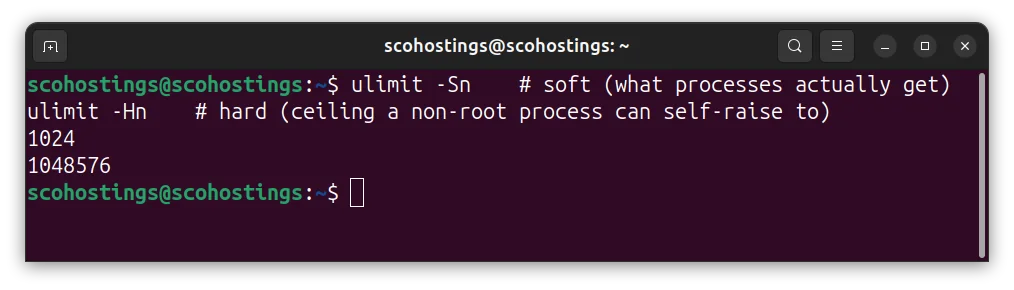
System-wide kernel maximum across all processes combined
cat /proc/sys/fs/file-max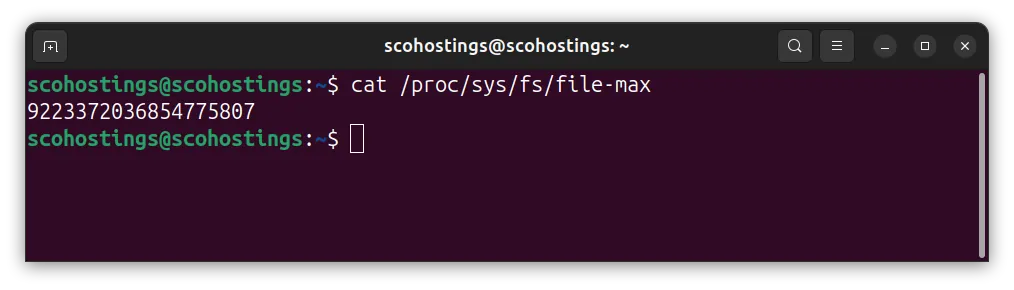
Live kernel usage: FDs allocated / FDs unused / max
cat /proc/sys/fs/file-nr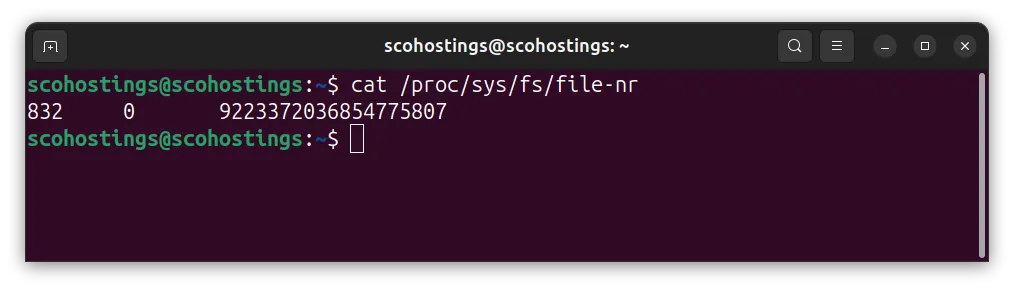
To check a specific running process, replace PID with the actual process ID:
Limits for a specific process
cat /proc/PID/limits | grep "open files"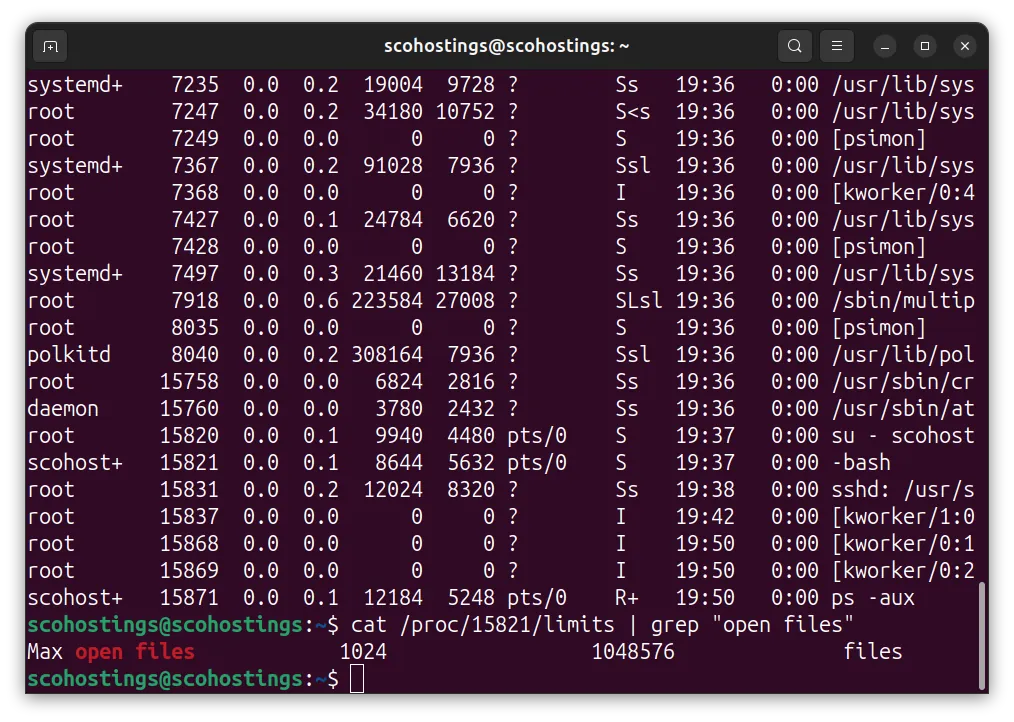
Count FDs a process currently holds
lsof -p PID | wc -l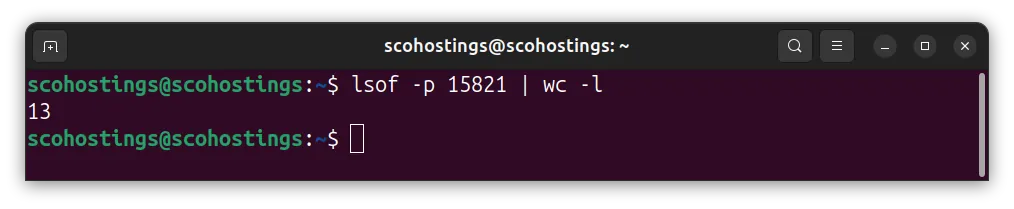
Get the PID of a named service
pgrep nginx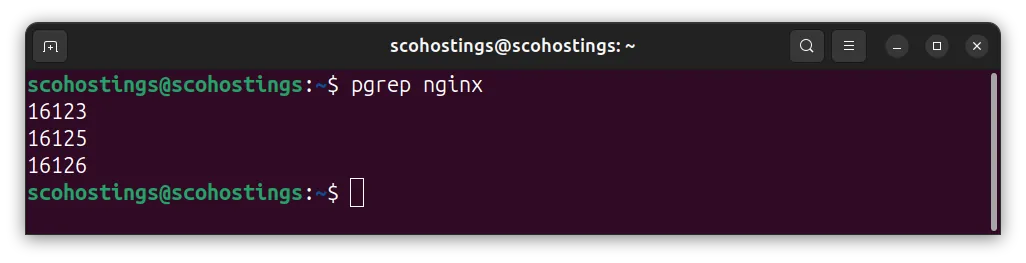
For systemd-managed services, there’s a faster path:
systemctl show nginx.service | grep -i limitnofile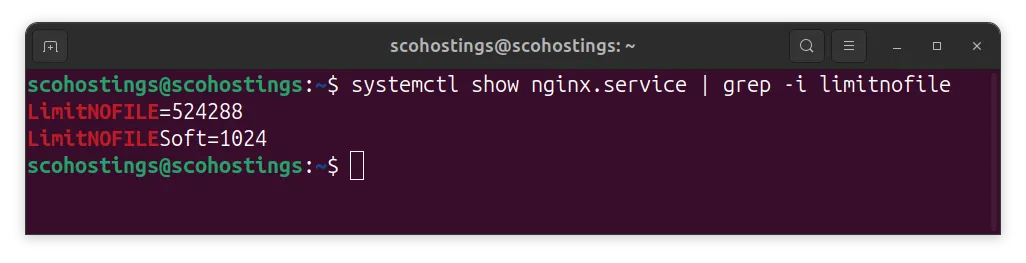
That last command is worth bookmarking. Many sysadmins spend hours editing limits.conf and wonder why the service still reports 1,024 — because systemd enforces its own limits independently.
How to Increase the Limit Temporarily (Current Session Only)
Need a quick fix without touching any config files? One shell built-in does it:
ulimit -n 65535
This raises the soft limit to 65,535 for your current shell session and any child processes you spawn from it. It doesn’t survive a logout, doesn’t affect other users, and doesn’t modify any file. When is it the right tool? Mainly for testing — confirm that raising the limit actually fixes the problem before committing to a permanent change. It’s also handy for one-off batch jobs that open large numbers of files.
One constraint: you can raise the soft limit up to the hard limit (4,096 by default) without root. Going beyond 4,096 requires sudo or a prior limits.conf change. So if you run ulimit -n 65535 as a non-root user on a fresh system and it doesn’t complain, it only means the hard limit is already higher — which is worth verifying with ulimit -Hn.
How to Raise the Open Files Limit Permanently for Users
Ubuntu’s PAM-based limit system defaults to a hard cap of 4,096 FDs per user — meaning any permanent raise beyond that requires editing /etc/security/limits.conf . This file controls limits for interactive logins and PAM-authenticated sessions.
sudo nano /etc/security/limits.confAdd these lines at the bottom. Replace * with a specific username (like www-data for nginx) if you want to target one account:
# Raise open file limits for all users
* soft nofile 65535
* hard nofile 65535
# Or target a specific user
www-data soft nofile 65535
www-data hard nofile 65535After you added the above settings hit CTRL+X then Y and ENTER to save it.
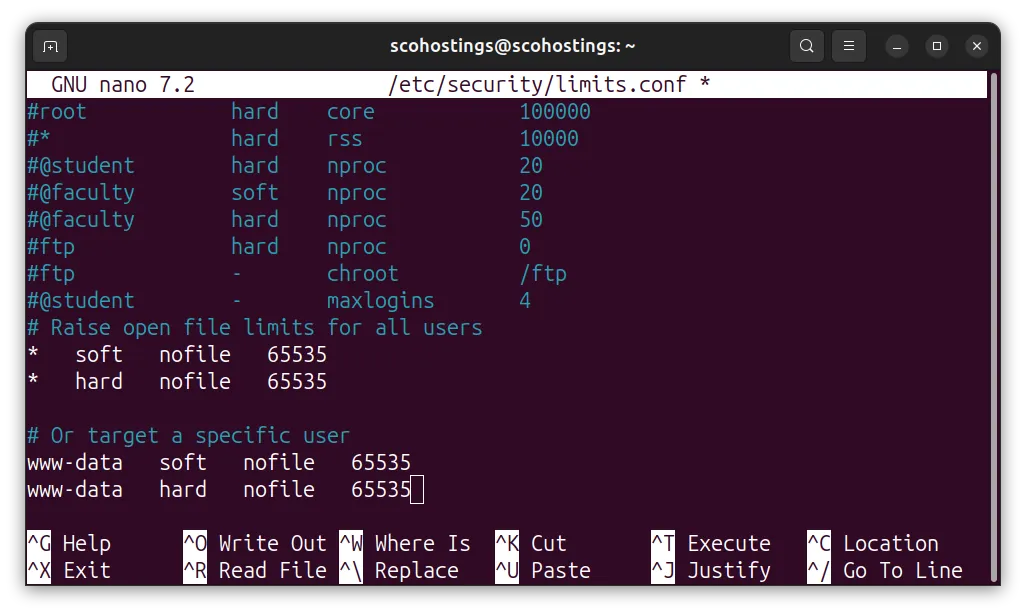
Log out and back in. The change only applies to new sessions — existing shells don’t pick it up. Verify:
ulimit -Sn # should now show 65535
ulimit -Hn # should now show 65535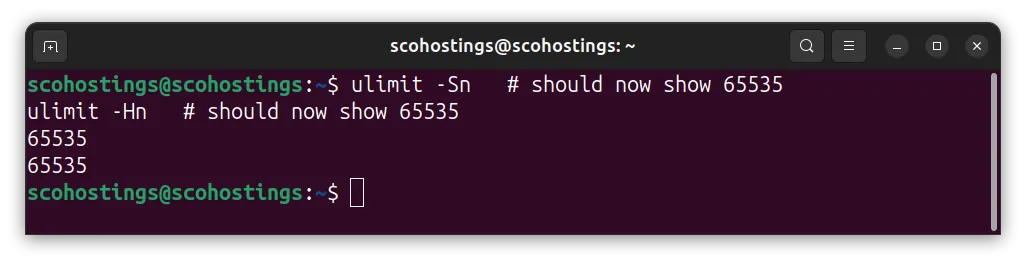
As of 2024, Ubuntu’s default hard limit of 4,096 FDs per user means any server running nginx, PostgreSQL, or Node.js will hit resource exhaustion under moderate traffic. The soft limit of 1,024 is the first ceiling most services breach — raising both soft and hard values in /etc/security/limits.conf to 65,535 is the recommended production baseline.
How to Increase the System-Wide Kernel Limit with sysctl
The kernel has its own absolute ceiling that sits above all per-user and per-service limits. As of January 2026, production servers should set fs.file-max to at least 524,288 for high-concurrency workloads — the default of around 175,000 on a fresh Ubuntu 24.04 install isn’t enough for busy databases or reverse proxies.
Check the current kernel maximum:
cat /proc/sys/fs/file-maxApply a new value immediately (doesn’t survive reboot):
sudo sysctl -w fs.file-max=524288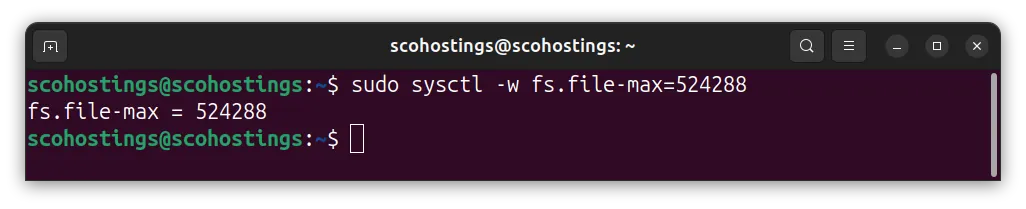
Make it permanent by editing /etc/sysctl.conf:
sudo nano /etc/sysctl.confAdd or update:
fs.file-max = 524288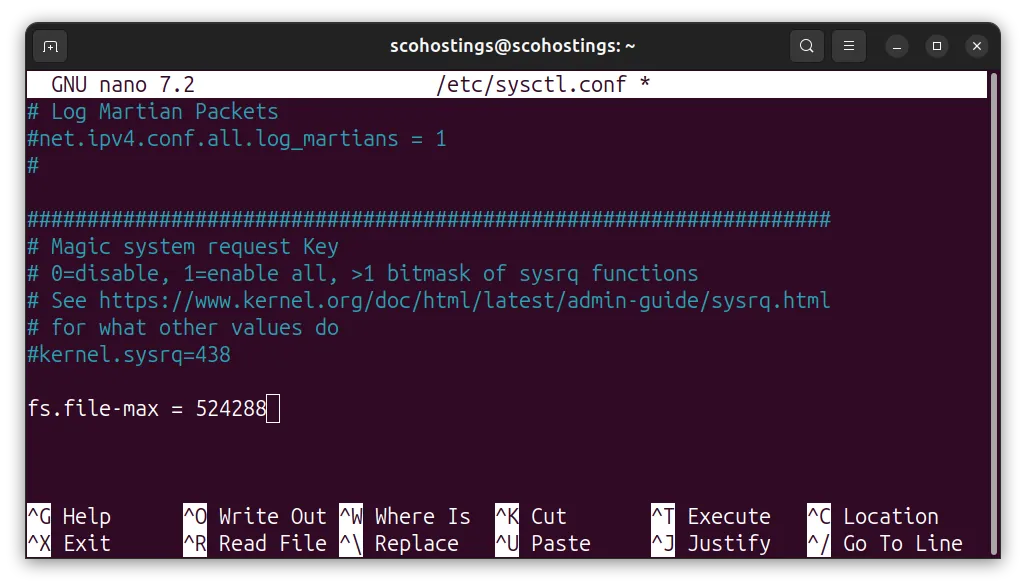
Apply without rebooting:
sudo sysctl -pThis kernel-level ceiling is the total pool — no single process or service can exceed it, regardless of what their individual limits say. If you raise per-process limits but leave fs.file-max too low, you’ll hit the wall at the kernel level instead of the service level. Set the kernel ceiling first, then tune per-service limits.
How to Increase File Descriptor Limits for systemd Services
Here’s what trips up most sysadmins: systemd ignores /etc/security/limits.conf entirely for services it manages. In Ubuntu 24.04, the official Noble manpages confirm that systemd sets its own default — DefaultLimitNOFILE=1024:524288 — giving services a soft limit of 1,024 and a hard cap of 524,288 (Ubuntu Noble manpages, “systemd-system.conf.5”, 2024). The hard cap is already generous. The soft default of 1,024 is still the problem.
You’ve got two options. The first raises the global default for all systemd services. The second targets a single service — and that’s almost always the safer choice in production.
Option 1: Raise the Default for All Services
sudo nano /etc/systemd/system.confFind the DefaultLimitNOFILE line (it may be commented out) and set it:
DefaultLimitNOFILE=65535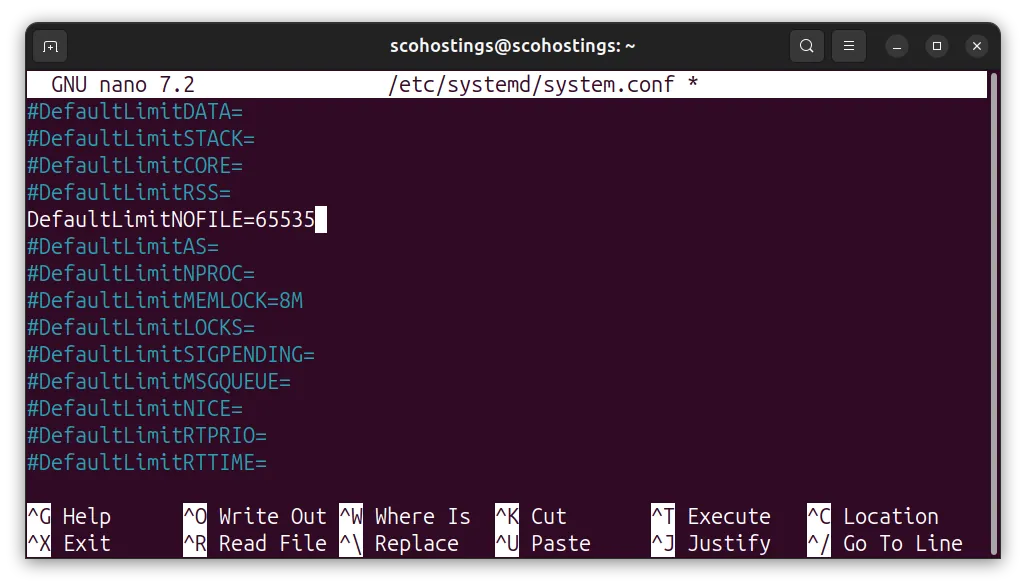
Apply with:
sudo systemctl daemon-reexecdaemon-reexec is different from daemon-reload. The reload re-reads unit files. The reexec restarts the systemd manager process itself, which is what picks up changes to system.conf.
Option 2: Override a Single Service (Recommended)
sudo systemctl edit nginx.serviceAn editor opens a drop-in override file. Add:
[Service]
LimitNOFILE=65535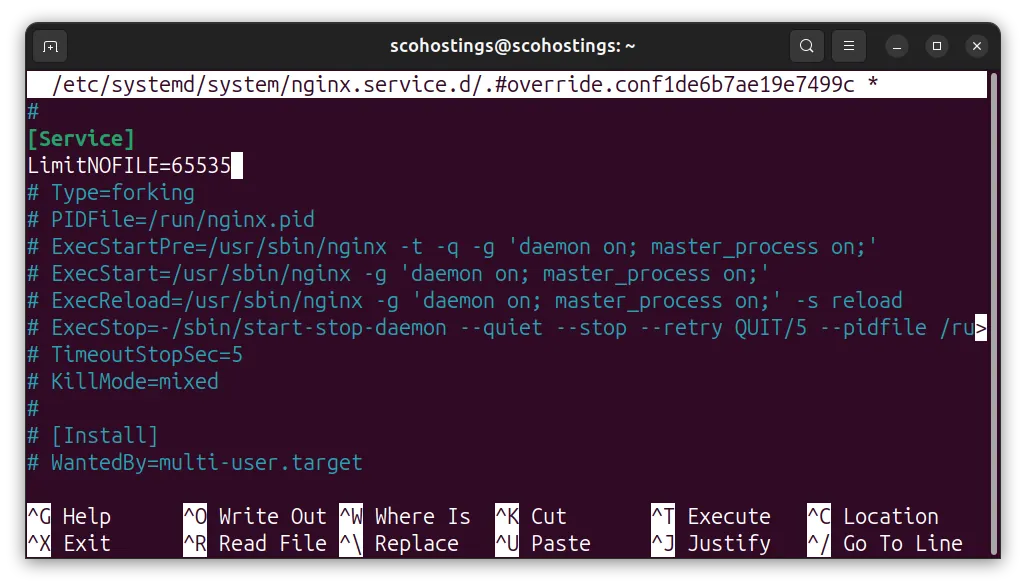
Save and restart:
sudo systemctl restart nginx.serviceThe override lands at /etc/systemd/system/nginx.service.d/override.conf. Verify it’s active with systemctl cat nginx.service — you’ll see the override appended below the original unit.
Service-Specific File Descriptor Settings
System-wide limits are the floor. Each service also has its own configuration knob that must align with the OS limit — or you’ll hit a different ceiling inside the application itself. In January 2026, GetPageSpeed’s nginx tuning guide confirmed that worker_rlimit_nofile must be at least double worker_connections to prevent connection drops under proxy load (GetPageSpeed, “Tuning worker_rlimit_nofile in NGINX”, January 2026).
nginx
Each proxied request uses two FDs: one for the client socket, one for the upstream. The formula is:
worker_rlimit_nofile = worker_connections × 2
Set this in the main nginx.conf context — outside of the http {} block:
sudo nano /etc/nginx/nginx.confAdd this or edit if already exist (the worker_rlimit_nofile 65535; does not exist in the conf but the worker_connections does):
This is how it looks like default
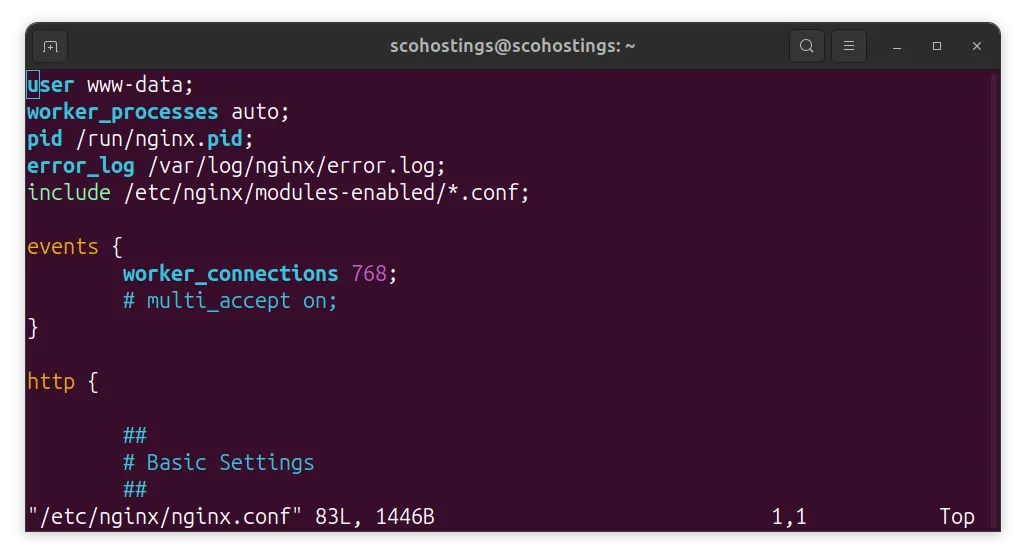
# /etc/nginx/nginx.conf — top-level context
worker_rlimit_nofile 65535;
events {
worker_connections 32767; # half of worker_rlimit_nofile
}And this is how it should look like after the change
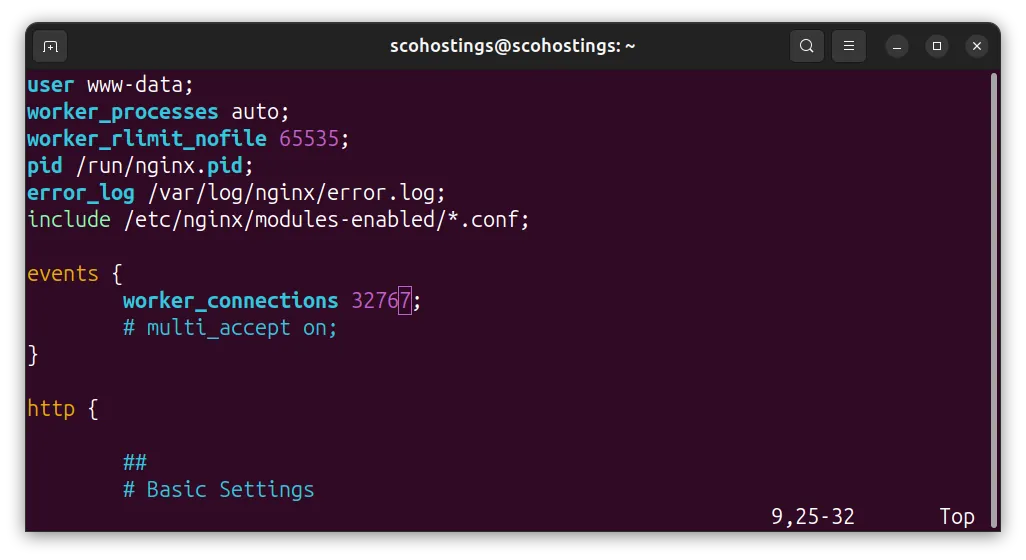
Reload nginx after changes:
sudo nginx -t && sudo systemctl reload nginxPostgreSQL
PostgreSQL has its own FD parameter separate from the OS limit. The default max_files_per_process is 1,000, but workloads with many partitioned tables can easily need 2,000 or more (postgresqlco.nf, “max_files_per_process”, 2024). Set the OS limit for the postgres user first, then match it in postgresql.conf:
sudo nano /etc/security/limits.confAnd add this
postgres soft nofile 65535
postgres hard nofile 65535And then match it in postgresql.conf (the config location can differe based on the postgresql version, you can check on Ubuntu Help page PostgreSQL)
sudo nano /etc/postgresql/16/main/postgresql.confAnd add this or change it in case is already present
max_files_per_process = 4096Redis
Redis reserves 32 FDs for internal use and auto-adjusts maxclients at startup so that maxclients ≤ OS soft limit − 32. The default maxclients = 10,000 requires an OS soft limit of at least 10,032 (Redis, “Client Handling”, 2024–2025). If the OS limit is too low, Redis silently reduces maxclients and logs a warning that’s easy to miss. Verify Redis’s effective value after startup:
redis-cli INFO clients | grep maxclients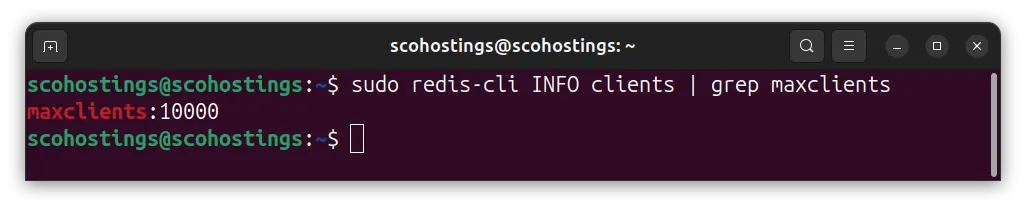
Node.js
Node.js inherits the OS soft limit and throws EMFILE errors when it hits the ceiling. The graceful-fs npm package queues file operations instead of crashing when FDs run out — but that’s a band-aid. You still need to raise the OS limit. For systemd-managed Node.js services, the unit file override method above is the right fix.
How to Verify the New Limits Are Actually Applied
In 2024, the Prometheus Operator project documented that most observability stacks don’t track per-process FD counts by default — Prometheus fires a warning alert when any node reaches 70% of fs.file-max and a critical alert at 90% (Prometheus Operator Runbooks, “NodeFileDescriptorLimit”, 2024). Don’t wait for 90%. Add these verification steps to every deployment checklist.
1. Verify your shell session limit
ulimit -Sn2. Check a specific running process
pgrep nginx | head -1 | xargs -I{} cat /proc/{}/limits | grep "open files"3. Verify via systemd
systemctl show nginx.service | grep LimitNOFILE4. Count FDs currently open by a process
pgrep -f "nginx: worker" | head -1 | xargs -I{} sh -c 'lsof -p {} 2>/dev/null | wc -l'5. Check system-wide FD usage
cat /proc/sys/fs/file-nrIf systemctl show nginx.service | grep LimitNOFILE still shows LimitNOFILE=1024 after adding a unit override, double-check that you ran systemctl daemon-reload and systemctl restart nginx. The override file must exist at /etc/systemd/system/nginx.service.d/override.conf — run systemctl cat nginx.service to confirm it’s being picked up.
Prometheus Operator runbooks confirmed that FD exhaustion frequently goes undetected until a production outage, because standard observability stacks don’t monitor per-process FD counts. Warning alerts fire at 70% of fs.file-max; critical alerts fire at 90%. Teams without these alerts in place discover the problem only when a service stops accepting connections.
NodeFileDescriptorLimit Prometheus alert rule as part of any FD tuning work. The 70% warning threshold gives you time to act before the 90% critical fires.
Running a production Ubuntu server? Pair these FD limit changes with a full
sysctltuning pass — the same/etc/sysctl.confcontrols TCP buffer sizes, connection backlog, and memory overcommit. A tuned kernel can double throughput on a busy nginx or PostgreSQL box without adding hardware.
Frequently Asked Questions
Do I need to reboot after changing the open files limit in Ubuntu 24.04?
No reboot is needed for any of these changes. The ulimit -n override applies immediately to the current shell. Changes to /etc/security/limits.conf take effect on next login. Kernel sysctl changes apply instantly with sysctl -p. Systemd global changes apply after daemon-reexec; per-service changes apply after a service restart. Ubuntu 24.04’s default soft limit of 1,024 is confirmed by TecMint (2024) for all fresh installs — no reboot required to change it.
Why does my service still show 1,024 after I edited limits.conf?
Because systemd ignores /etc/security/limits.conf for the services it manages. In Ubuntu 24.04, systemd enforces DefaultLimitNOFILE=1024:524288 independently (Ubuntu Noble manpages, 2024). You need to add LimitNOFILE=65535 in the service’s unit override file via systemctl edit <service>, then restart the service. Run systemctl show <service> | grep LimitNOFILE to confirm the new value is active.
What is a safe value for the open files limit on a production Ubuntu server?
For per-process limits, 65,535 is the standard production baseline for nginx, Node.js, and Redis. PostgreSQL typically only needs 4,096 unless you’re using heavily partitioned schemas. For the system-wide fs.file-max kernel parameter, set 524,288 on servers handling high concurrency (DoHost, January 2026). Prometheus Operator runbooks (2024) recommend alerting at 70% of that ceiling and treating 90% as a critical incident requiring immediate action.
How do I know if my server is hitting the open files limit right now?
Check /proc/sys/fs/file-nr — the first number is FDs currently in use system-wide, the third is the kernel maximum. For a specific process, run cat /proc/<PID>/limits | grep "open files" to see its current consumption versus its ceiling. If you’re running Prometheus, the NodeFileDescriptorLimit alert rule (Prometheus Operator Runbooks, 2024) triggers a warning at 70% utilization — that’s the signal to act before you hit an outage.
Conclusion
The open files limit in Ubuntu 24.04 is a three-layer problem: the kernel ceiling (fs.file-max), the systemd default (which overrides limits.conf for managed services), and the per-process PAM setting. Miss any one layer and you’ll still hit a wall. Here’s the sequence that covers all three:
- Set
fs.file-max = 524288in/etc/sysctl.confand runsudo sysctl -p - Add soft and hard limits of 65,535 in
/etc/security/limits.conffor relevant users - Use
sudo systemctl edit <service>to addLimitNOFILE=65535for each systemd service - Match the OS limit in each service’s own config (nginx:
worker_rlimit_nofile; PostgreSQL:max_files_per_process; Redis: verifymaxclients + 32 ≤ soft limit) - Verify with
cat /proc/<PID>/limitsand add a Prometheus alert at 70% utilization
Do all five, and “Too many open files” stops being a production incident.
Comments (0)
Sign in to join the discussion
Sign in

