How to Troubleshoot a Broken Website: Complete Diagnostic Guide (2026)

What is Website Troubleshooting?
Website troubleshooting is the systematic process of identifying, diagnosing, and resolving the root causes of website downtime, slow loading speeds, or connection errors. This process typically involves checking HTTP server status codes, measuring network latency with ping tests, and tracing the routing path of data packets to isolate the exact point of failure.
Key characteristics:
- External testing to verify global accessibility versus local network issues
- Measuring latency and packet loss using the ICMP protocol
- Identifying network bottlenecks across various router hops
Website Downtime by the Numbers
| Metric | Value | Source |
|---|---|---|
| Average cost of IT downtime | $5,600 per minute | Gartner |
| Users who abandon a site taking >3 seconds to load | 40% | Think with Google |
| Visitors less likely to return after a bad experience | 88% | Sweor |
| Average response time considered “Excellent” | <30ms | SeoPerc |
Which Diagnostic Tool Do You Need?
Before diving in, understand the difference between the three core diagnostic tools:
| Tool | What It Measures | Best For |
|---|---|---|
| Website Status Checker | HTTP Response Codes (e.g., 200, 500, 503) | Checking if a site is completely down or throwing server errors |
| Ping Tool | Latency (ms) and Packet Loss | Identifying high lag, high Time to First Byte (TTFB), or dropped connections |
| Traceroute Tool | Router Hops and Path Latency | Finding exactly where the network connection is breaking along the route |
Bottom line: Use a Status Checker first to verify if the server is responding. If it is responding but slow, use Ping to measure the delay. If the Ping drops entirely, use Traceroute to find the exact broken router.
How to Troubleshoot a Broken Website
When your website won’t load, follow this systematic diagnostic process to isolate the issue without guessing.
Verify global uptime with a Status Checker — Go to the SeoPerc Website Status Checker, enter your URL, and check the HTTP status code. If it returns 200 OK, the site is up, and the issue is likely your local browser cache or ISP. If it returns a 500 Internal Server Error or 503 Service Unavailable, your web server is actively crashing or overloaded.
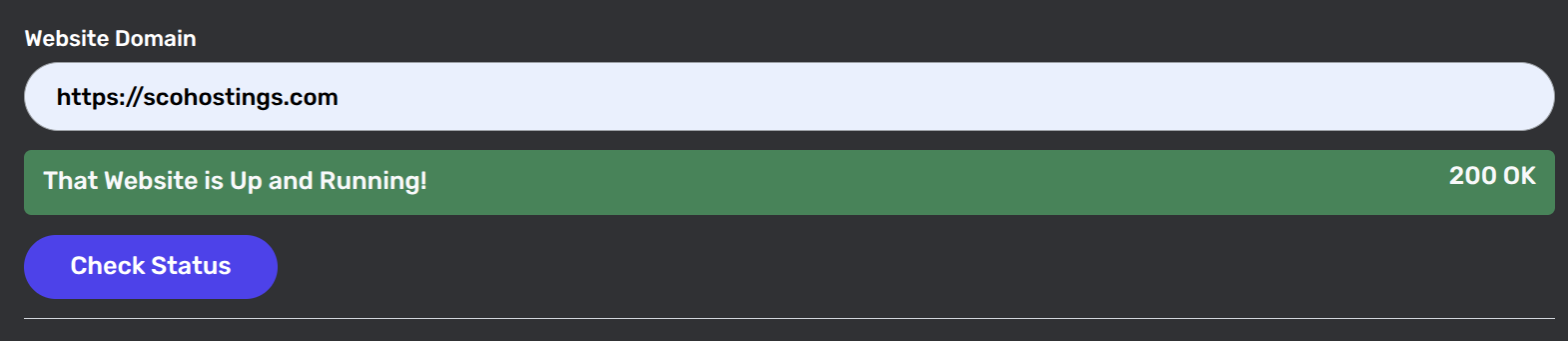 SeoPerc Website Status Checker
Test network connectivity with Ping — If the status checker shows the site is up but it feels slow, use the SeoPerc Online Ping Tool. Enter your domain to send ICMP Echo Requests from multiple locations. Look for high latency (over 150ms) or packet loss (e.g., 50% loss indicates a failing router or bad cable).
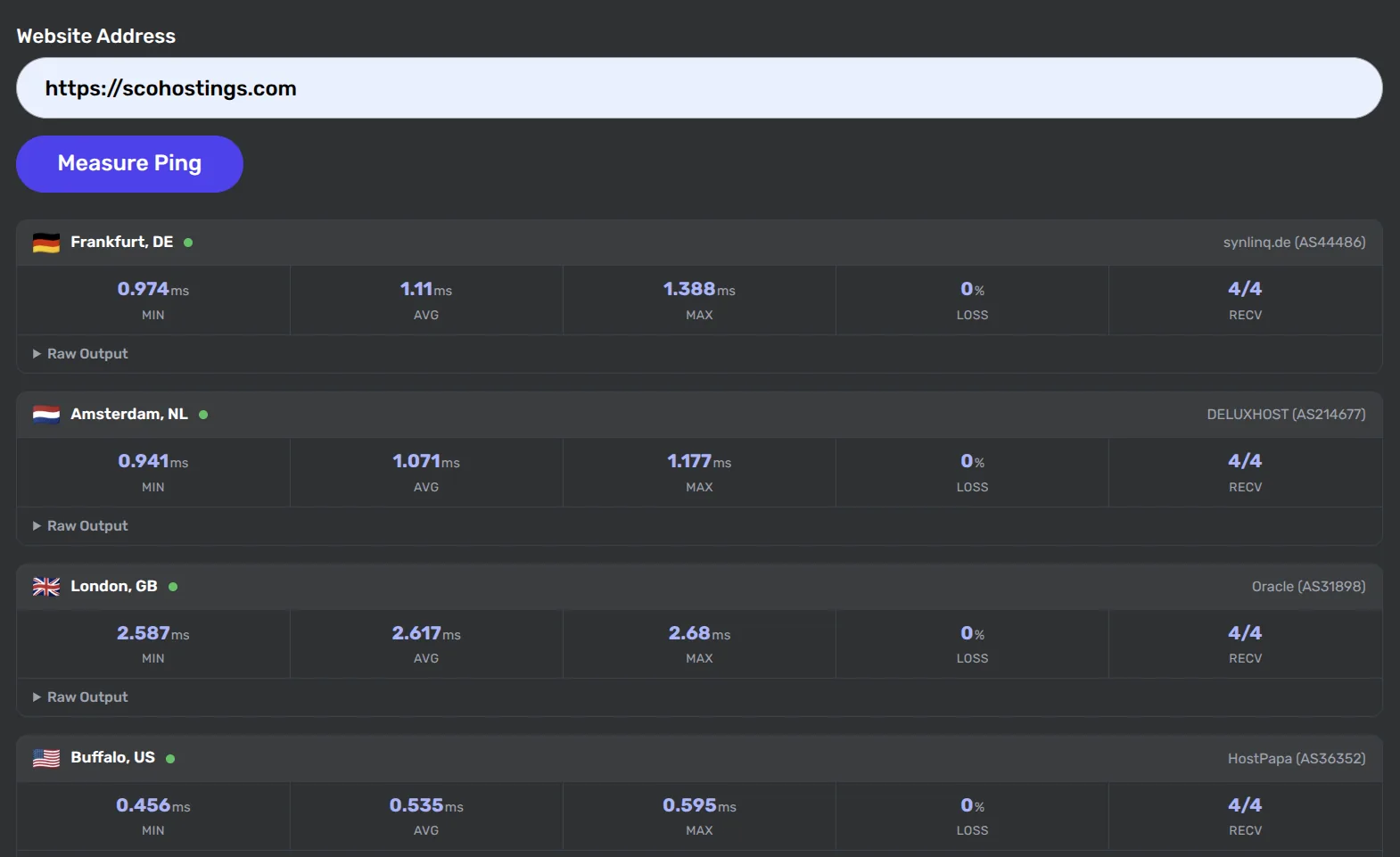 SeoPerc Online Ping Tool Multiple Location
Map the exact network path with Traceroute — If your ping requests are timing out, use the SeoPerc Traceroute Tool. This tool uses Time-To-Live (TTL) packets to map every router hop between the source and your destination server.
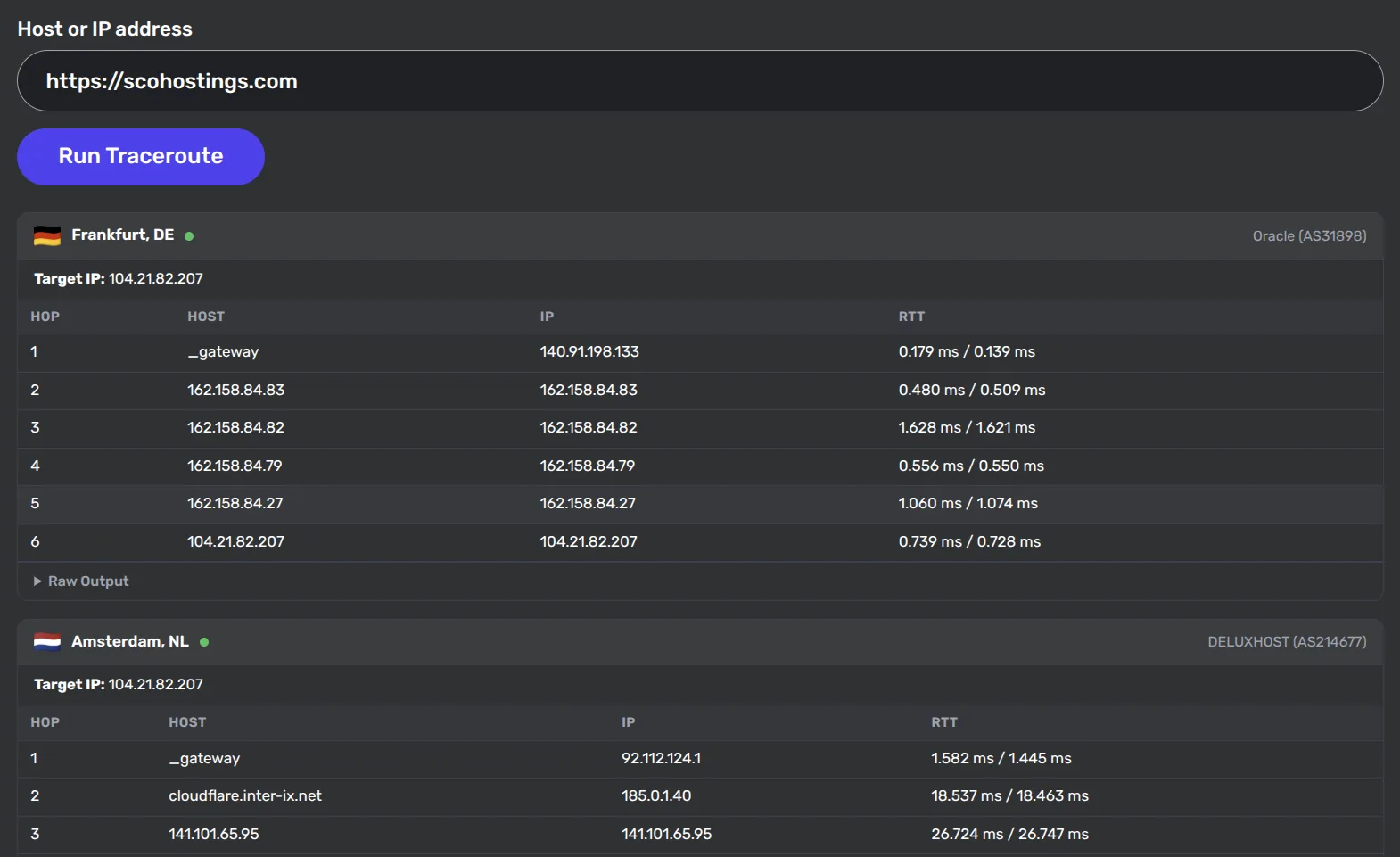 SeoPerc Traceroute Multiple Location Tool
Identify the network bottleneck — Analyze the traceroute results. If latency spikes at hop 5 (e.g., jumping from 20ms to 300ms), that specific peering point is congested. If you see asterisks (* * *) at the very end, the datacenter might just be blocking diagnostic packets for security, which is normal.
Take action based on the data — If the server is throwing a 500 error, check your NGINX/Apache error logs or recent software updates. If the traceroute fails at your ISP’s node, contact your internet provider.
Prerequisites: Your website’s domain name or IP address
Time required: 5 minutes
Expected outcome: Identifying whether the downtime is local (your network), transit (the internet backbone), or destination (your web server).
“The biggest mistake system administrators make is assuming a website is down for everyone just because it won’t load on their laptop. Always use external diagnostic tools to verify server health from multiple geographic locations before making changes to your hosting infrastructure.”
— ScoHostings System Administration Team
Frequently Asked Questions
Q: What does a 503 Service Unavailable error mean?
A: A 503 Service Unavailable error means your web server is currently functioning but unable to handle the request. This typically happens during scheduled maintenance, when the server is overloaded with too much traffic, or if PHP/database workers are completely exhausted.
Q: Is a Ping test the same as a speed test?
A: No. A ping test measures latency (how fast a single, tiny packet of data travels back and forth in milliseconds), while a speed test measures bandwidth (how much total data you can download per second). You can have high bandwidth but a bad ping, resulting in delayed website responses.
Q: Why does my Traceroute show asterisks (* * *) but my website still loads?
A: Asterisks in a traceroute simply mean the router or firewall at that hop timed out or refused to answer the diagnostic ICMP packet. Many modern datacenters intentionally block ICMP/UDP traceroute packets to prevent DDoS attacks, while still allowing normal web traffic (TCP on ports 80 and 443) through to your website.
Q: What is a good ping response time for a website?
A: For standard web browsing, a good ping response time is between 30ms and 60ms. Anything under 30ms is considered excellent. If your ping exceeds 150ms, visitors will experience noticeable lag, which can negatively impact user experience and increase your Time to First Byte (TTFB).
Comments (0)
Sign in to join the discussion
Sign in