How to Change SSH Port on Ubuntu 24.04 (The Updated Method That Actually Works)

Tested on Ubuntu 24.04.3 LTS (Noble Numbat) as of March 2026.
If you searched for how to change the SSH port on Ubuntu 24.04, chances are you found the usual advice: edit sshd_config, restart SSH, and you are done.
The problem is that on Ubuntu 24.04, that method often does not fully work anymore.
A lot of users change the port, restart the SSH service, and then notice the server is still listening on port 22. That is frustrating, especially when the config looks correct. The reason is simple: Ubuntu 24.04 often uses systemd socket activation for OpenSSH, so restarting ssh.service alone may not apply the new listening port. You usually need to reload systemd and restart ssh.socket too.
This guide shows the updated working method step by step, in plain English, so you can change your SSH port without guessing and without locking yourself out of your server.
Quick Answer
To change the SSH port on Ubuntu 24.04, set a new Port value in /etc/ssh/sshd_config or /etc/ssh/sshd_config.d/, allow the new port through the firewall, test the config with sudo sshd -t, then run:
sudo systemctl daemon-reload
sudo systemctl restart ssh.socketThat extra daemon-reload and ssh.socket restart is the part many old tutorials miss on Ubuntu 24.04.
Why the Old Method Fails on Ubuntu 24.04
Older Ubuntu tutorials usually assume OpenSSH is controlled only by the service itself. On Ubuntu 24.04, OpenSSH is commonly handled through socket-based activation, which changes how the port is applied. In other words, the socket can keep listening on port 22 even after you update the SSH config correctly.
That is why the usual “edit config and restart SSH” method can appear broken. The missing piece is that systemd needs to regenerate and reload the socket configuration before the new port takes effect.
Before You Start
Before changing the SSH port, keep your current SSH session open. Do not disconnect until you have confirmed that the new port works in a second terminal window. That is the safest way to avoid locking yourself out. Ubuntu’s server documentation recommends validating SSH configuration changes carefully for exactly this reason.
Also, choose a port that is not already in use. A common example is 2222, but you can use another unused TCP port if you prefer.
Step 1: Back Up Your SSH Config
Always start with a backup:
sudo cp /etc/ssh/sshd_config /etc/ssh/sshd_config.backup
This gives you a fast recovery option if you need to roll back.
Step 2: Set the New SSH Port
You have two ways to do this.
Option 1: Use a config snippet
This is the cleaner method on Ubuntu:
sudo nano /etc/ssh/sshd_config.d/port.confAdd:
Port 2222Then press CTRL + x and then Y then ENTER to save the file.
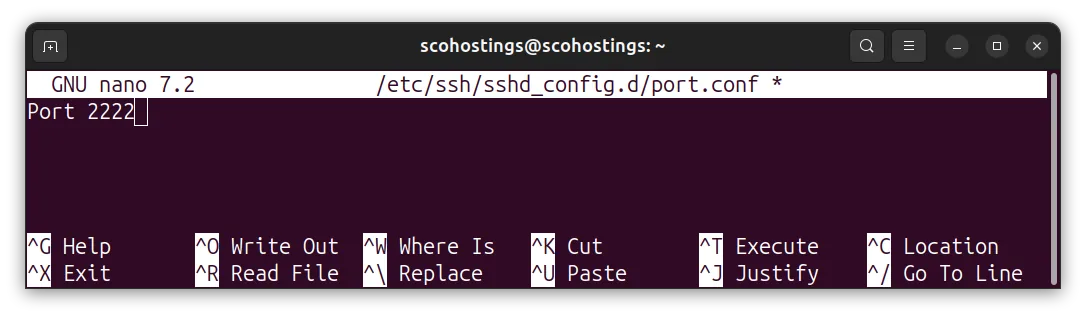
Ubuntu supports modular SSH config files under /etc/ssh/sshd_config.d/, which makes custom changes easier to manage.
In our example, we used port 2222, but you can use any port from 1024 to 65535. Make sure to check whether the chosen port is already in use by running the command below:
sudo lsof -i:2222If the port is used by another program you will get this result, and you should not use that port:
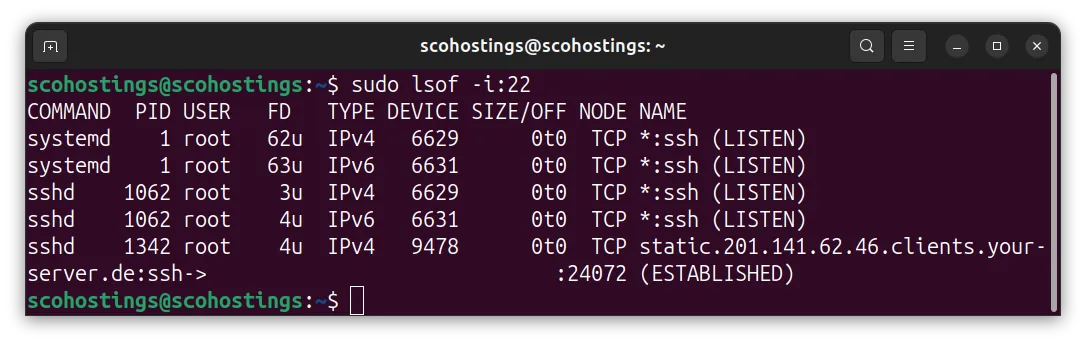
If the port is not used then you can use that port for ssh:

Option 2: Edit the main SSH config file
sudo nano /etc/ssh/sshd_configFind this line:
#Port 22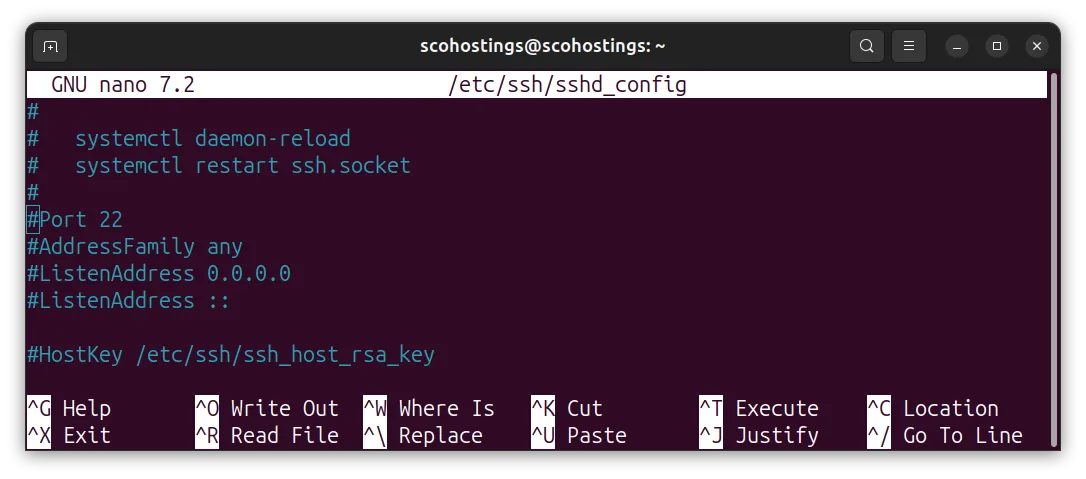
Change it to:
Port 2222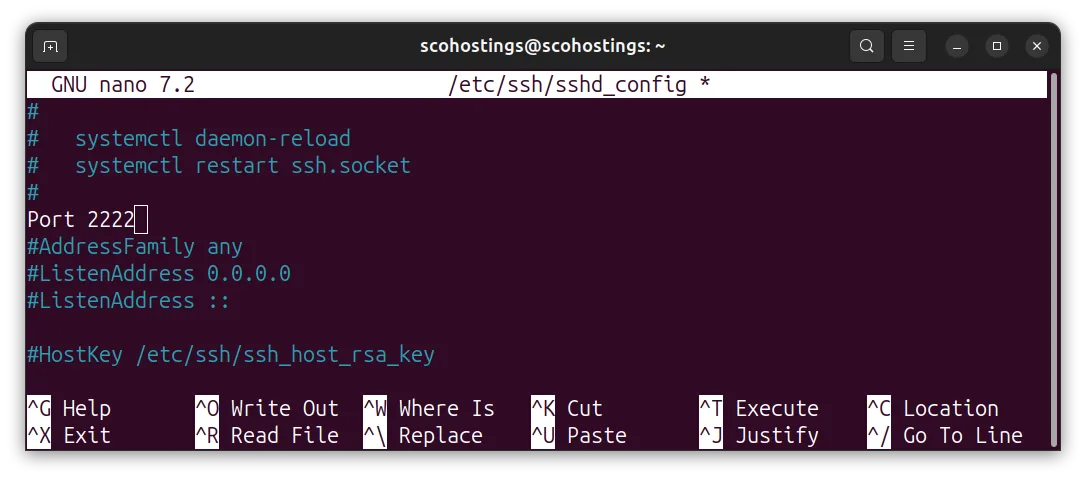
Then press CTRL + x and then Y then ENTER to save the file.
Both methods work, but the snippet approach is cleaner and easier to maintain over time.
Step 3: Check the Config Before Applying It
Run this command:
sudo sshd -tIf there is no output, the config is valid. If there is an error, fix it before moving on. This check is important and is recommended in Ubuntu’s SSH documentation.
Step 4: Open the New Port in the Firewall
If you use UFW, allow the new port before restarting anything:
sudo ufw allow 2222/tcp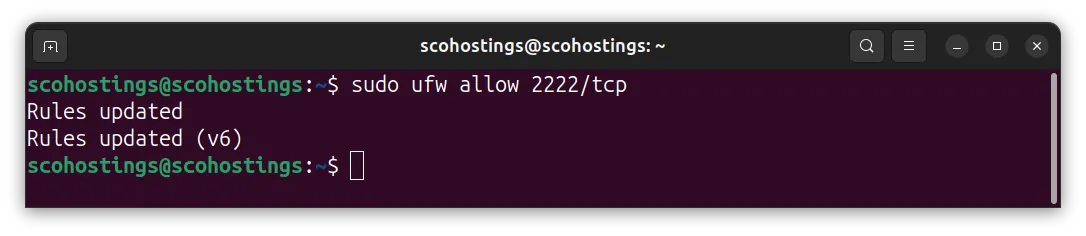
Then verify:
sudo ufw statusIf your VPS provider or cloud platform uses a separate firewall or security group, make sure the same port is allowed there too.
Step 5: Reload systemd and Restart ssh.socket
This is the most important step on Ubuntu 24.04.
Run:
sudo systemctl daemon-reload
sudo systemctl restart ssh.socketThis reloads the generated socket configuration and applies the new listening port. On Ubuntu 24.04, this is often the step that makes the SSH port change actually work. Restarting only ssh.service may leave SSH listening on port 22.
You can also restart the service afterward:
sudo systemctl restart ssh.serviceBut the key step is the socket reload, not just the service restart.
Step 6: Check Which Port SSH Is Listening On
Now verify the result:
sudo ss -tlnp | grep ssh
If everything worked, you should see SSH listening on your new port, such as 2222.
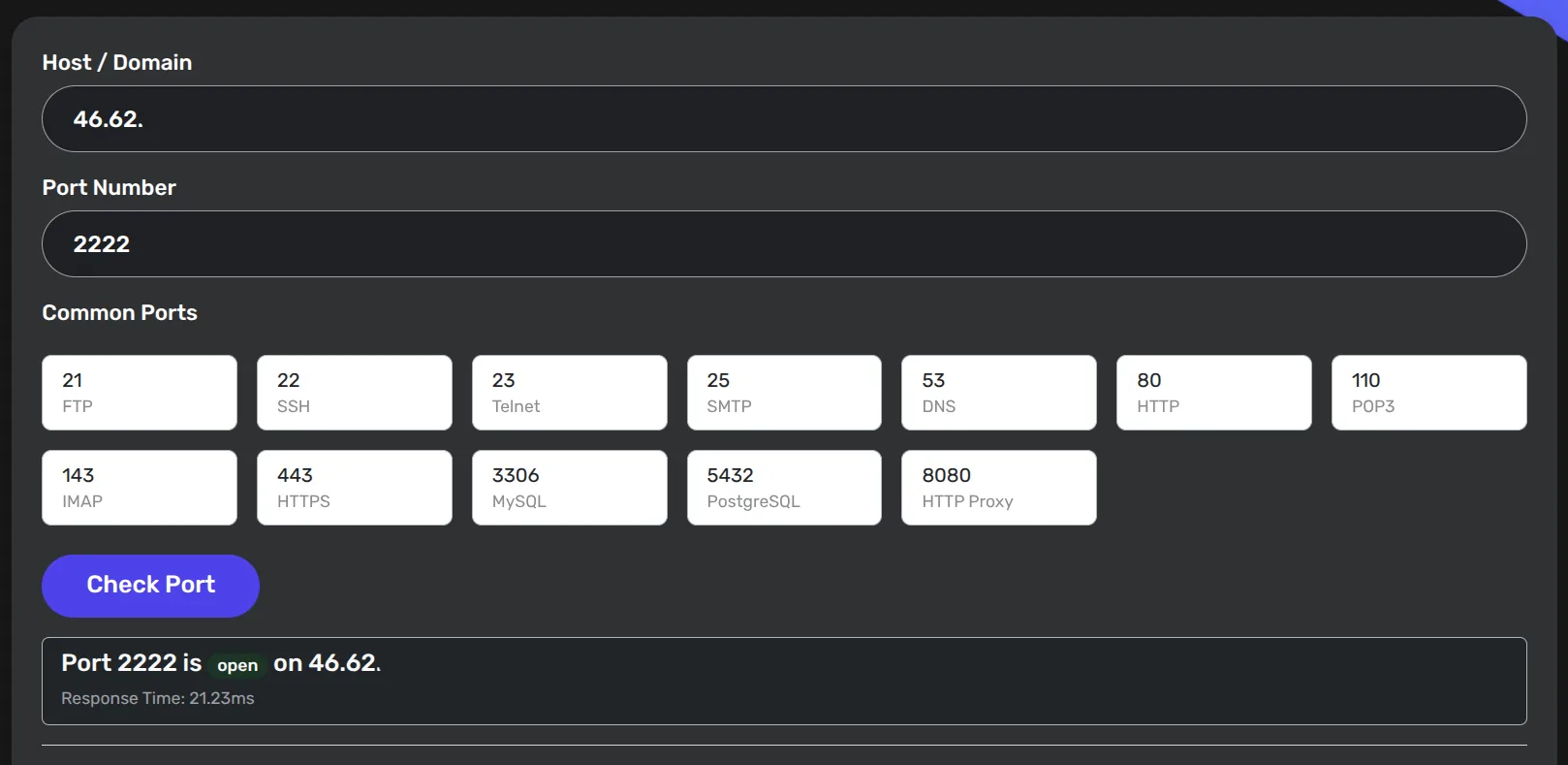
If you want to check if the port is accessible from outside head over to this tool SeoPerc Open Port Checker and see if the port is open.
Step 7: Test the New SSH Port
Open a second terminal and test it:
ssh username@your-server-ip -p 2222Do not close your original SSH session until this works.
Once you confirm the new connection is good, you can remove access to the old SSH port if you want:
sudo ufw delete allow 22/tcpShould You Edit /lib/systemd/system/ssh.socket Directly?
In most cases, no.
That file is package-managed, which means updates can overwrite your changes. The safer long-term approach is to set the port in sshd_config or an SSH config snippet, then reload systemd and restart ssh.socket. If you ever need to override the socket unit itself, use a proper systemd drop-in instead of editing files under /lib/systemd/system/ directly.
Best Working Method for Ubuntu 24.04
Here is the method most people should use:
- Create
/etc/ssh/sshd_config.d/port.conf - Add
Port 2222 - Run
sudo sshd -t - Allow the port with UFW
- Run
sudo systemctl daemon-reload - Run
sudo systemctl restart ssh.socket - Test the new port from a second terminal
That is the updated Ubuntu 24.04 workflow that solves the issue where SSH keeps listening on port 22.
Extra Security Tips
Changing the SSH port can reduce automated bot traffic, but it should not be your only security measure. For better SSH security, also consider disabling password authentication and blocking root login if your setup allows it. Ubuntu’s OpenSSH documentation supports further hardening through standard SSH config settings.
Example:
PermitRootLogin no
PasswordAuthentication noAfter making changes, always validate again with:
sudo sshd -tFinal Thoughts
If changing the SSH port on Ubuntu 24.04 did not work for you the first time, you were probably following an older guide written for a different SSH startup model.
The difference on Ubuntu 24.04 is systemd socket activation. Once you know that, the fix is simple: change the SSH port in the config, validate it, reload systemd, and restart ssh.socket. That is the part that makes the new port apply properly.
So yes, the old tutorial style is outdated for many Ubuntu 24.04 setups. The method above is the one that actually works.
FAQ
How do I change the SSH port on Ubuntu 24.04?
Set a new Port value in /etc/ssh/sshd_config or /etc/ssh/sshd_config.d/, allow the port in the firewall, validate the config with sudo sshd -t, then run sudo systemctl daemon-reload and sudo systemctl restart ssh.socket.
Why is SSH still listening on port 22 after I changed the config?
Because Ubuntu 24.04 often uses systemd socket activation. If you only restart ssh.service, the socket can still keep port 22 active until you reload systemd and restart ssh.socket.
Is editing /lib/systemd/system/ssh.socket a good idea?
No, not for permanent changes. That file is managed by the package system and may be overwritten during updates. A config snippet or a systemd drop-in is safer.
What is the best file to use for a custom SSH port?
A good choice is:
/etc/ssh/sshd_config.d/port.confThen add your Port line there. Ubuntu supports this modular config layout.
What command shows the current SSH listening port?
Use:
sudo ss -tlnp | grep sshThat shows which ports SSH is actively listening on.
Is changing the SSH port enough to secure a server?
No. It helps reduce automated scans, but it should be combined with SSH keys, proper firewall rules, restricted login settings, and brute-force protection.
- #change ssh port ubuntu
- #change ssh port ubuntu 24.04
- #how to change ssh port on ubuntu server
- #linux
- #UBUNTU
- #ubuntu 24.04
- #ubuntu 24.04 openssh port change
- #ubuntu 24.04 ssh.socket
Comments (0)
Sign in to join the discussion
Sign in

