How to Safely Remove Old Kernels in Ubuntu 24.04

If you use Ubuntu 24.04 for a while, especially with HWE kernels, NVIDIA drivers, or frequent system updates, you may notice that several old Linux kernel versions remain installed.
For example, your system might show many kernel versions such as:
6.11.0-26-generic 6.14.0-28-generic 6.14.0-29-generic 6.14.0-35-generic 6.14.0-37-generic 6.17.0-23-generic 6.17.0-29-generic
This can look messy, and it can also use extra disk space in /boot, /lib/modules, and /usr/src. However, you should not blindly remove every old kernel. Kernels are what your system boots from, and removing the wrong one can make recovery harder if a new kernel fails.
In this tutorial, I will show you how to safely check which kernels are installed, decide which ones to keep, remove the old ones, clean leftover package records, and update GRUB.
Important: Before we start, do not simply copy and paste the commands without checking your own system first. The kernel versions used in this tutorial are examples from my Ubuntu 24.04 system, and your installed kernel versions may be different. Always check which kernels you currently have installed, decide which ones you want to keep, and never remove the kernel you are currently running.
Why Ubuntu Keeps Old Kernels
Ubuntu does not immediately delete every older kernel when a new one is installed. This is intentional.
Old kernels act as a fallback. If the latest kernel causes a boot issue, driver problem, display issue, Wi-Fi issue, or NVIDIA module problem, you can boot into an older kernel from the GRUB advanced options menu.
This is especially useful on desktop systems with NVIDIA drivers, custom DKMS modules, VirtualBox modules, ZFS, or newer HWE kernels.
How Many Kernels Should You Keep?
As a general rule, you should keep at least two kernels:
- Your current working kernel.
- One known-good fallback kernel.
For example, if your current kernel is:
6.17.0-29-generic
you may want to keep one older stable kernel such as:
6.14.0-37-generic
Keeping only one kernel is risky. If the current kernel fails after an update, you may not have an easy fallback from GRUB. Keeping two or three kernels is usually a good balance between safety and disk cleanup.
For normal desktop and server usage, I recommend:
Minimum: 2 kernels Optional: 3 kernels if you want one extra older fallback
Do not follow someone else’s exact kernel list. First check what is installed on your own system, then decide which versions make sense to keep.
Step 1: Check the Kernel You Are Currently Running
Before removing anything, check your active kernel:
uname -rExample output:
6.17.0-29-generic
The running kernel should never be removed.
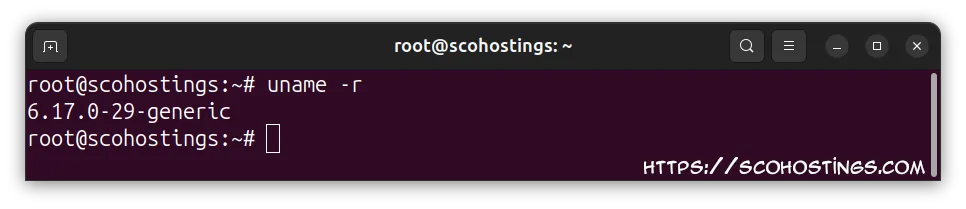
You can also check full system information with:
uname -aExample:
Linux scohostings 6.17.0-29-generic #29~24.04.1-Ubuntu SMP PREEMPT_DYNAMIC Mon May 11 10:30:58 UTC 2 x86_64 x86_64 x86_64 GNU/Linux
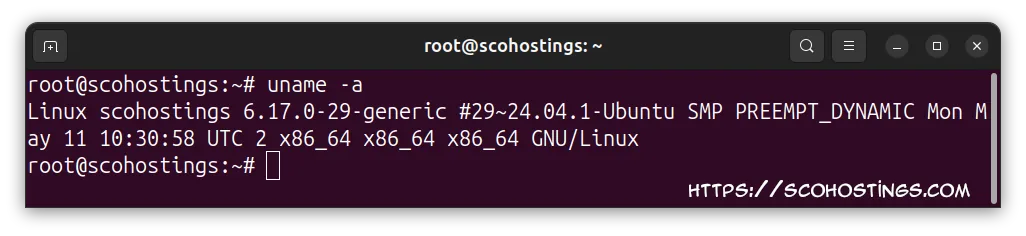
In this example, 6.17.0-29-generic is the active kernel, so it must be kept.
Step 2: List Installed Kernel Images
To list installed kernel image packages, run:
dpkg -l | grep -E 'linux-image-[0-9]|linux-image-unsigned-[0-9]' | sort -VThis may show a long list, but be careful: not every entry is necessarily fully installed.
The first column matters:
ii linux-image-6.17.0-29-generic rc linux-image-6.14.0-28-generic
The important statuses are:
ii = installed rc = removed, but configuration files remain
If a kernel package is marked rc, it is not actually installed as a bootable kernel anymore. It is only a leftover package configuration entry.
A better command to show only installed kernel images is:
dpkg -l | awk '$1=="ii" && $2 ~ /^linux-image-[0-9]|^linux-image-unsigned-[0-9]/ {print $2}' | sort -V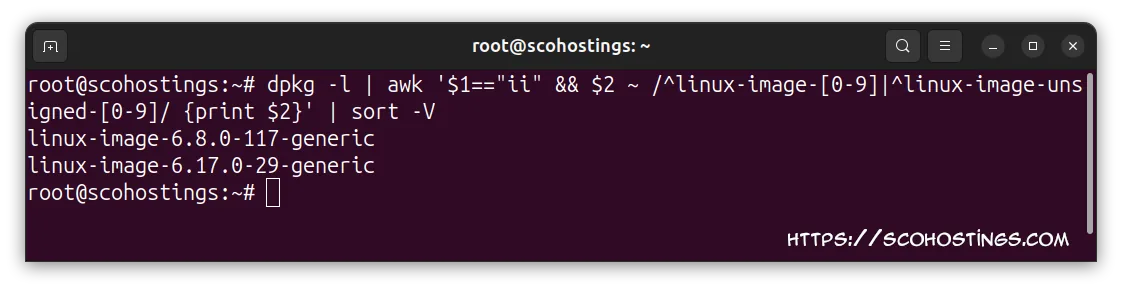
This avoids confusing installed kernels with old rc leftovers.
Step 3: Check What GRUB Can Actually Boot
Another useful check is to see what exists in /boot:
ls -lh /boot/vmlinuz-* /boot/initrd.img-* 2>/dev/null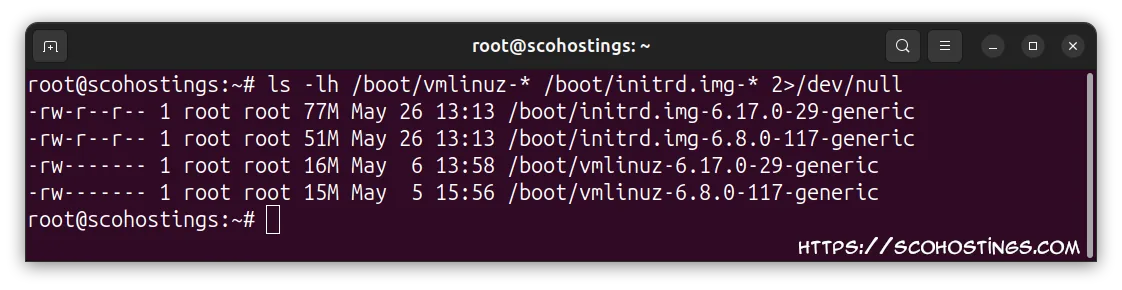
If a kernel does not have a matching vmlinuz and initrd.img file in /boot, it is probably not available as a normal boot option.
You can also regenerate GRUB and see which kernels are detected:
sudo update-grub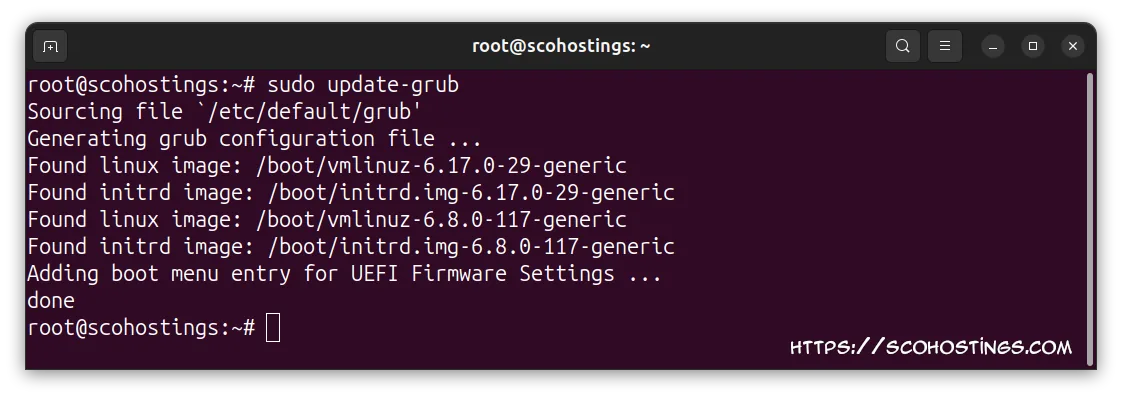
In this example, GRUB found only two bootable kernels:
6.17.0-29-generic 6.8.0-117-generic
That is a clean setup: one current kernel and one fallback.
Step 4: Decide Which Kernels to Keep
You need to decide which kernel versions you want to keep based on your own installed list.
For example, you may decide to keep:
6.17.0-29-generic 6.8.0-117-generic
Or, if you want an extra fallback and it is actually installed, you may keep three:
6.8.0-117-generic 6.14.0-37-generic 6.17.0-29-generic
But do not assume an old kernel is still bootable just because dpkg -l shows its name. If it appears with rc, it is only a leftover record, not a fully installed kernel.
Step 5: Build a List of Kernels You Want to Remove
After deciding what to keep, list the kernel versions you want to remove.
Example:
REMOVE_KERNELS="6.14.0-28 6.14.0-29 6.14.0-35 6.17.0-23"Then collect matching packages:
PKGS=$(dpkg-query -W -f='${binary:Package}\n' 'linux-*' | \
grep -E "$(echo "$REMOVE_KERNELS" | sed 's/ /|/g')")Before removing anything, print the package list:
echo "$PKGS"You should see packages such as:
linux-image-6.14.0-28-generic linux-modules-6.14.0-28-generic linux-modules-extra-6.14.0-28-generic linux-headers-6.14.0-28-generic
If you use NVIDIA drivers, you may also see packages like:
linux-objects-nvidia-580-6.14.0-35-generic linux-modules-nvidia-580-6.14.0-33-generic
That is normal. These packages belong to old kernel versions and can be removed together with those old kernels.
Step 6: Dry-Run the Removal First
Always test the purge operation before doing it for real:
sudo apt purge --dry-run $PKGSRead the output carefully.
Make sure it does not remove:
linux-image-your-current-kernel linux-generic linux-generic-hwe-24.04 ubuntu-desktop nvidia-driver-*
It is normal if it removes old packages like:
linux-image-6.14.0-28-generic linux-modules-6.14.0-28-generic linux-headers-6.14.0-28-generic
If the dry-run looks correct, continue.
Step 7: Remove the Old Kernels
Run:
sudo apt purge $PKGSAPT will ask for confirmation. Check the list again, then confirm.
After that, run:
sudo apt autoremove --purge
sudo update-grubapt autoremove removes automatically installed packages that are no longer needed. Using --purge also removes leftover configuration files.
Step 8: Remove Old rc Kernel Package Entries
After removing old kernels, dpkg -l may still show many old kernel names. If they are marked as rc, they are only leftover configuration records.
To purge all old removed Linux package configs, run:
dpkg -l | awk '$1=="rc" && $2 ~ /^linux-/ {print $2}' | xargs -r sudo apt purge -yThen check again:
dpkg -l | grep -E 'linux-image-[0-9]|linux-image-unsigned-[0-9]' | sort -VA clean result should look similar to:
ii linux-image-6.14.0-37-genericii linux-image-6.17.0-29-generic
The ii status means the packages are installed. If only the kernels you want appear with ii, your package cleanup is good.
Step 9: Safely Check Leftover /lib/modules Directories
Safety correction: An earlier version of this step used a broad
find ... rm -rfcommand. That method could delete module directories for kernels that were still installed. The command has been removed and replaced with package-aware checks.
Sometimes, after removing an old kernel, you may see a warning such as:
rmdir: failed to remove '/lib/modules/6.14.0-34-generic': Directory not emptyThis usually means the directory contains leftover DKMS, NVIDIA, VirtualBox, or other third-party modules.
Important: Never use a broad
rm -rfcommand to delete everything except a manually created list of kernels. You could accidentally delete modules belonging to an installed or currently running kernel.
First, inspect every module directory and compare it with the running kernel, installed packages, and files in /boot:
for directory in /lib/modules/*; do
[ -d "$directory" ] || continue
kernel="${directory##*/}"
if [ "$kernel" = "$(uname -r)" ]; then
status="KEEP — currently running"
elif dpkg-query -W \
-f='${binary:Package}\t${db:Status-Abbrev}\n' \
"linux-*${kernel}*" 2>/dev/null |
awk -F '\t' '$2 == "ii " { found=1 } END { exit !found }'
then
status="KEEP — installed kernel packages found"
elif [ -e "/boot/vmlinuz-$kernel" ] ||
[ -e "/boot/initrd.img-$kernel" ]; then
status="KEEP/REVIEW — boot files still exist"
else
status="REVIEW — possible leftover directory"
fi
printf '%-35s %s\n' "$kernel" "$status"
doneExample output:
6.17.0-29-generic KEEP — installed kernel packages found
6.17.0-40-generic KEEP — currently running
7.0.0-28-generic KEEP — installed kernel packages found
6.14.0-34-generic REVIEW — possible leftover directoryAny directory marked KEEP must not be deleted.
Remove only completely empty directories
It is safe to list completely empty module directories with:
sudo find /lib/modules \
-mindepth 1 \
-maxdepth 1 \
-type d \
-empty \
-printReview the output and then remove only those empty directories:
sudo find /lib/modules \
-mindepth 1 \
-maxdepth 1 \
-type d \
-empty \
-deleteThis command cannot remove directories containing kernel modules.
Investigate non-empty directories
If a directory is marked REVIEW, check it individually:
KERNEL_TO_CHECK="6.14.0-34-generic"
du -sh "/lib/modules/$KERNEL_TO_CHECK"
dpkg-query -W \
-f='${binary:Package}\t${db:Status-Abbrev}\n' \
"linux-*${KERNEL_TO_CHECK}*" 2>/dev/null
ls -lh \
"/boot/vmlinuz-$KERNEL_TO_CHECK" \
"/boot/initrd.img-$KERNEL_TO_CHECK" 2>/dev/null
dkms status | grep -F "$KERNEL_TO_CHECK"Do not delete the directory if:
- It is the running kernel shown by
uname -r. - Any matching package has the
iistatus. - A corresponding
vmlinuzorinitrd.imgexists. - DKMS reports installed modules for that kernel.
- You are uncertain whether the kernel is still needed.
A leftover non-empty directory is generally harmless. If you are unsure, leave it in place. Removing a small leftover directory is not worth risking damage to an installed kernel.
APT normally manages kernel removal and protects the running and recent kernels during automatic removal. Manual recursive deletion under /lib/modules should only be used by experienced administrators after verifying the exact directory. Ubuntu documents these kernel-protection settings in APT.
Step 10: Verify the Final Kernel List
Check installed kernel images:
dpkg -l | awk '$1=="ii" && $2 ~ /^linux-image-[0-9]|^linux-image-unsigned-[0-9]/ {print $2}' | sort -V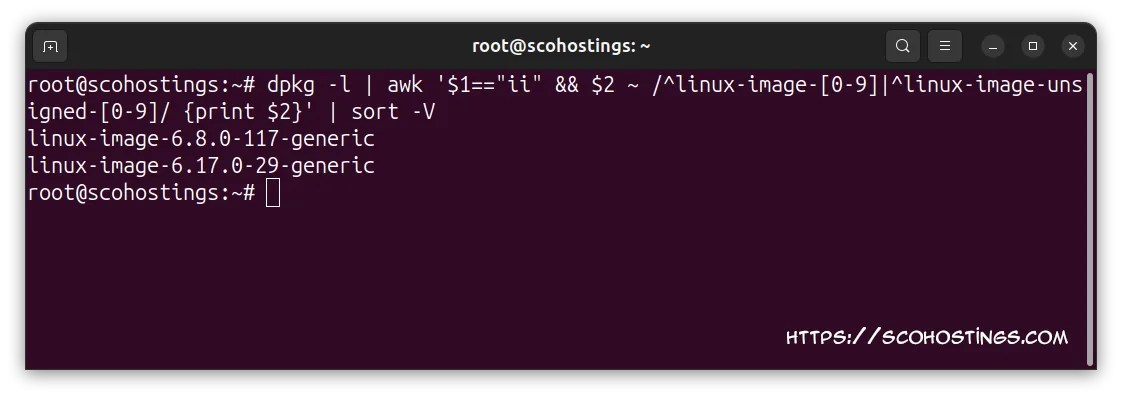
Check /boot:
ls -lh /boot/vmlinuz-* /boot/initrd.img-* 2>/dev/nullCheck GRUB:
sudo update-grubYou should see only the kernels you decided to keep.
For example:
6.17.0-29-generic 6.14.0-37-generic
That means your system has one current kernel and one fallback kernel.
Optional: Mark Your Kept Kernels as Manual
If you want to reduce the chance of APT treating your fallback kernel as removable, you can mark the kept kernel packages as manually installed.
Example:
KEEP_KERNELS="6.14.0-37 6.17.0-29"
for k in $KEEP_KERNELS; do
dpkg-query -W -f='${binary:Package}\n' "linux-*${k}*" 2>/dev/null
done | xargs -r sudo apt-mark manualThis tells APT that these packages were intentionally kept.
Common Mistake: Thinking rc Means Installed
One of the most common mistakes is using this command:
dpkg -l | grep -E 'linux-image-[0-9]|linux-image-unsigned-[0-9]'and assuming every result is installed.
That is not always true.
Example:
rc linux-image-6.11.0-26-generic ii linux-image-6.17.0-29-generic
The rc package is removed. Only its configuration files remain.
The ii package is installed.
If you want to see only installed kernels, use:
dpkg -l | awk '$1=="ii" && $2 ~ /^linux-image-[0-9]|^linux-image-unsigned-[0-9]/ {print $2}' | sort -VShould You Remove All Old Kernels?
No. Do not remove all old kernels.
You should always keep your current kernel and at least one fallback kernel. This gives you a recovery path if a future update causes boot, graphics, Wi-Fi, DKMS, or NVIDIA driver problems.
A good setup is:
Current kernel: keep Previous stable kernel: keep Everything older: usually safe to remove
Final Thoughts
Cleaning old kernels on Ubuntu 24.04 is safe when you do it carefully. The important part is not the exact command, but the process:
- Check your current running kernel.
- Check which kernel images are actually installed.
- Decide which versions you want to keep.
- Keep at least two kernels.
- Dry-run the purge before removing anything.
- Clean
rcleftovers. - Update GRUB.
- Verify the final result.
For most users, keeping two kernels is enough: the latest working kernel and one older fallback. This keeps your system clean while still giving you a recovery option if a kernel update causes problems.
FAQ
Why does Ubuntu keep old kernels?
Ubuntu keeps old kernels so you can boot into a previous version if a newer kernel causes problems. This is useful for hardware compatibility, NVIDIA drivers, DKMS modules, and recovery.
Is it safe to remove old kernels in Ubuntu 24.04?
Yes, as long as you do not remove the kernel you are currently running and you keep at least one fallback kernel.
How do I know which kernel I am using?
Run:
uname -rThe version shown by this command is your active kernel.
What does rc mean in dpkg -l?
rc means the package was removed, but configuration files remain. It is not a fully installed package.
What does ii mean in dpkg -l?
ii means the package is installed.
Should I keep two or three kernels?
Keeping two kernels is usually enough. Keep three if you want an extra fallback, especially on systems with NVIDIA drivers, custom modules, or recent hardware.
Do I need to run update-grub after removing kernels?
Yes. Running sudo update-grub refreshes the GRUB boot menu so it only lists available kernels.
Comments (0)
Sign in to join the discussion
Sign in

