How to Enable Wayland on Ubuntu Desktop (Efficiently and Securely)

Wayland, a modern display server protocol, is gaining traction as a replacement for the aging X11 system. It’s faster, more secure, and designed for the future of Linux desktops. If you’re an Ubuntu user looking to switch to Wayland or test its features, this guide will show you how to enable it efficiently. Let’s dive in!
What is Wayland, and Why Enable It?
Wayland is a protocol that provides a simpler and more secure way to manage display and input on Linux desktops. Unlike X11, which dates back decades, Wayland offers better performance, smoother animations, and tighter security. Here’s why you might consider enabling it:
- Improved Performance: Wayland reduces latency, resulting in a snappier user experience.
- Security Enhancements: It’s harder for malicious apps to snoop on other windows or inputs under Wayland.
- Future-Proof: Many Linux distributions are adopting Wayland as the default protocol.
Ubuntu has supported Wayland for years, but X11 remains the default on many setups for compatibility reasons. If your hardware supports it, switching to Wayland can unlock a more modern Linux desktop experience.
Step-by-Step Guide to Enable Wayland on Ubuntu
Step 1: Check Your Ubuntu Version
Wayland is included in Ubuntu by default, but the level of support varies depending on your version. Ubuntu 22.04 and later provide excellent Wayland support. To check your version, run:
lsb_release -aIf you’re using an older version, consider upgrading to ensure compatibility.
Step 2: Verify Wayland Support
Before enabling Wayland, make sure your graphics hardware and drivers support it. Wayland works well with modern GPUs and drivers, such as:
- Intel Graphics (Mesa)
- AMD Graphics (Mesa)
- NVIDIA (requires proprietary drivers 470+)
To check your GPU and driver:
lspci | grep VGA
glxinfo | grep "OpenGL renderer"If you’re using NVIDIA, ensure you have the latest proprietary drivers installed. Use:
sudo apt install nvidia-driver-550Step 3: Enable Wayland in the GDM Configuration
Ubuntu uses GNOME Display Manager (GDM) to manage graphical sessions. By default, GDM may have Wayland disabled. To enable it:
1. Open the GDM configuration file:
sudo nano /etc/gdm3/custom.conf2. Look for the line:
#WaylandEnable=false3. Uncomment it and set it to true:
WaylandEnable=true4. Save the file (Ctrl + O, then Enter) and exit (Ctrl + X).
Step 4: Restart the System
To apply the changes, restart your computer:
sudo rebootStep 5: Select Wayland at Login
After rebooting, follow these steps to switch to Wayland:
- At the login screen, click on your username.
- Before entering your password, click the gear icon at the bottom right corner.
- Select “Ubuntu on Wayland”.
- Enter your password and log in.
You’re now running Wayland on Ubuntu!
Tips for Enabling Wayland Efficiently
1. Test Compatibility Before Switching
Not all apps and desktop environments work seamlessly on Wayland. Test key applications to ensure they function properly. For example, screen recording tools and remote desktop software may need additional configuration or alternatives.
2. Update Your Drivers
Outdated GPU drivers can lead to glitches or performance issues on Wayland. Ensure you’re using the latest drivers:
sudo apt update && sudo apt upgrade3. Enable Fractional Scaling
Wayland supports fractional scaling, which is great for high-DPI displays. Enable it via GNOME Settings:
- Open Settings > Displays.
- Toggle Fractional Scaling and adjust the scaling factor to your preference.
4. Troubleshoot NVIDIA-Specific Issues
If you’re using NVIDIA, ensure you’re on a driver version 470 or later. Additionally, add the following line to your GDM configuration file for optimal performance:
nvidia-drm.modeset=1Update your GRUB configuration:
sudo nano /etc/default/grubAdd the above line to GRUB_CMDLINE_LINUX and update GRUB:
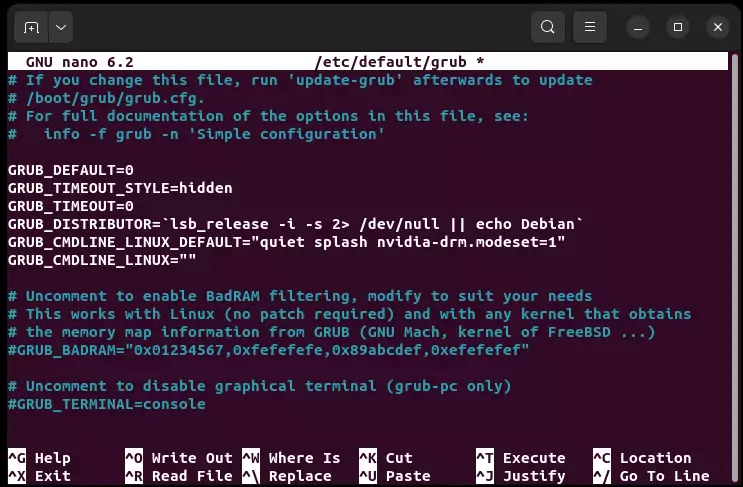 Adding nvidia-drm.modeset=1 to
 GRUB_CMDLINE_LINUX command line
sudo update-grub5. Revert to X11 if Needed
If you encounter issues with Wayland, you can easily switch back to X11 by selecting “Ubuntu on Xorg” at the login screen.
Benefits of Using Wayland
Once you’ve successfully enabled Wayland, here are some benefits you’ll notice:
- Smoother animations and transitions.
- Better multi-monitor support.
- Enhanced touch and gesture input.
- Improved power efficiency on laptops.
Wayland’s secure architecture also makes it less prone to certain types of attacks, giving you peace of mind.
Conclusion
Enabling Wayland on Ubuntu Desktop is a straightforward process that can unlock a modern, efficient, and secure Linux experience. While it may not be perfect for every setup, mainly if you rely on legacy applications or specific drivers, it’s worth exploring. You can switch to Wayland confidently and efficiently using the steps and tips provided here. Give it a try, and enjoy the future of Linux desktops!
FAQs
1. How can I check if I’m running Wayland?
Run this command in your terminal:
echo $XDG_SESSION_TYPEIf it returns wayland, you’re on Wayland. If it says x11, you’re on Xorg.
2. Can I use Wayland with NVIDIA GPUs?
Yes, but you’ll need proprietary drivers version 470 or newer. Follow the tips in this guide for NVIDIA-specific configurations.
3. What are the main limitations of Wayland?
Wayland lacks support for some legacy applications, screen recording, and remote desktop tools. These gaps are gradually being filled with updates and alternatives.
4. How do I revert to X11?
At the login screen, select “Ubuntu on Xorg” before entering your password.
5. Is Wayland faster than X11?
Yes, Wayland is generally faster and more efficient due to its simpler design and reduced overhead.
- #enable Wayland Ubuntu
- #how to enable Wayland Ubuntu
- #Linux Wayland tutorial
- #secure Wayland Ubuntu
- #switch to Wayland Ubuntu
- #troubleshooting Wayland Ubuntu
- #Ubuntu 22.04 Wayland setup
- #Ubuntu desktop Wayland guide
Comments (0)
Sign in to join the discussion
Sign in

