How to Connect to MySQL through SSH Tunnel: A Step-by-Step Guide

As you guys know, MySQL listens to localhost by default, which means it can be accessed just by the applications that are hosted on the same host.
However, there are situations where you might need to connect to MySQL from a remote location. The first option will be configuring MySQL to allow remote connection, but this option is risky and requires administrative privileges.
The second, more secure option is to create an SSH tunnel from the local system to the MySQL server.
In this guide, I’m gonna explain how you can create an SSH tunnel and connect to the MySQL server from remote locations. This guide could also be applied to the MariaDB.
Why Use an SSH Tunnel for MySQL?
Those are the benefits of using an SSH tunnel over the option of allowing remote connection to MySQL:
- Enhanced Security: All data transferred between your local machine and the server is encrypted.
- Remote Access: You can securely manage your database from any location.
- Firewall Bypass: SSH tunnels can help you bypass firewalls or restrictions that block direct database connections.
Prerequisites for Setting Up an SSH Tunnel
Before you begin, ensure you have the following:
- SSH Access: Ensure you have valid SSH credentials (username, password, or SSH key) for the remote server.
- MySQL Credentials: The MySQL username, password, and the database host information.
- SSH Client: Tools like OpenSSH, PuTTY, or any other SSH client, depending on your operating system.
- MySQL Client: A MySQL client installed on your local machine to interact with the database.
Step-by-Step Guide to Establishing the SSH Tunnel on Linux and macOS
1. Establish the SSH Connection
Most Linux and Unix-based systems have the SSH client already installed.
To start creating the SSH tunnel, you must open the terminal or command prompt and use the command below:
ssh -N -L local_port:127.0.0.1:mysql_port username@remote_hostReplace username, remote_host, and local_port with your respective credentials and port details.
- local_port: The port on your local machine where the tunnel will listen (e.g., 3307).
- mysql_port: The port on which MySQL is running on the remote server (commonly 3306).
- remote_host: The IP address or domain of the remote server.
-N: Tells SSH not to execute a remote command.- If you want to run the command in the background, use the
-foption, and if the SSH server is listening on a port other than 22, you can specify the port with the-p [PORT_NUMBER]option.
For example, if you want to forward local port 3307 to remote MySQL port 3306, your command would look like this:
ssh -L 3307:127.0.0.1:3306 [email protected]After executing the command, you might be prompted to enter your SSH password or use your SSH key for authentication.
- Connect to MySQL Locally
Once the SSH tunnel is active, open a new terminal window or command prompt. Connect to MySQL using the local port you specified:
mysql -u mysql_user -p -h 127.0.0.1 -P 3307If the local port is the same as the remote port, you can drop the option -P .
Step-by-Step Guide to Establishing the SSH Tunnel on Windows
Windows does not have the SSH client installed by default. The most popular Windows SSH client is PuTTY, which can be downloaded from here.
Here are the steps to create an SSH tunnel in Windows by using PuTTY:
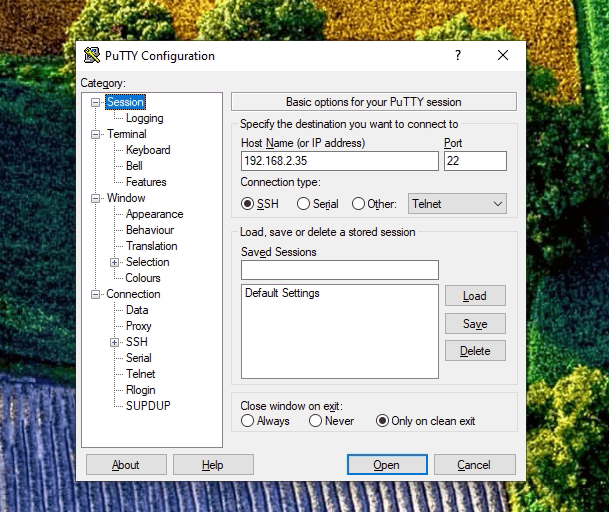
1. Open Putty and enter the IP address of the MySQL server in the Host name (or IP address) field:
2. Expand the SSH option from the Connection menu and select Tunnels. Enter 3306 in the Source Port field, and 127.0.0.1:3307 in the Destination field:
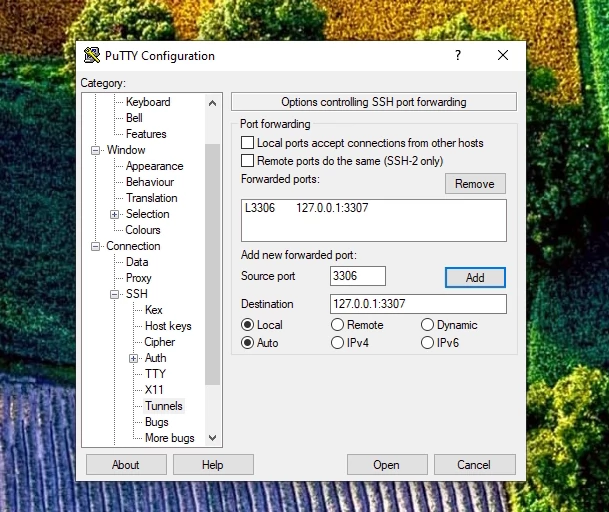
Click on the Add button to add the tunnel. You can change the destination port to the one you prefer.
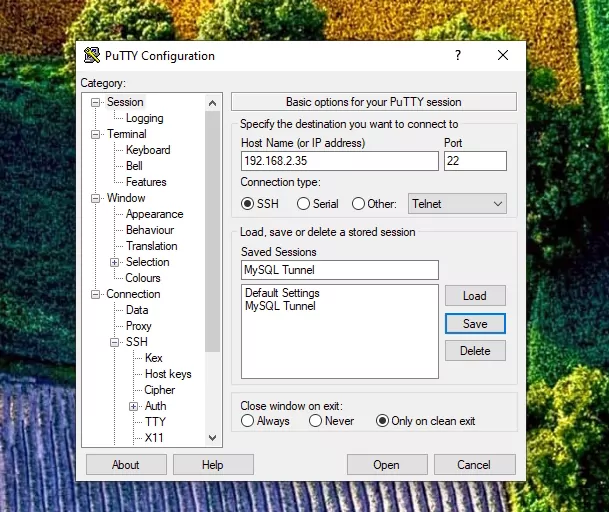
3. Return to the Session page to save the settings so you don’t need to enter them again.
Before clicking on the Save button, you will need to input the name of the Saved Session and then click Save.
4. Now, you can select the saved session and connect to the remote server by clicking the button Open.
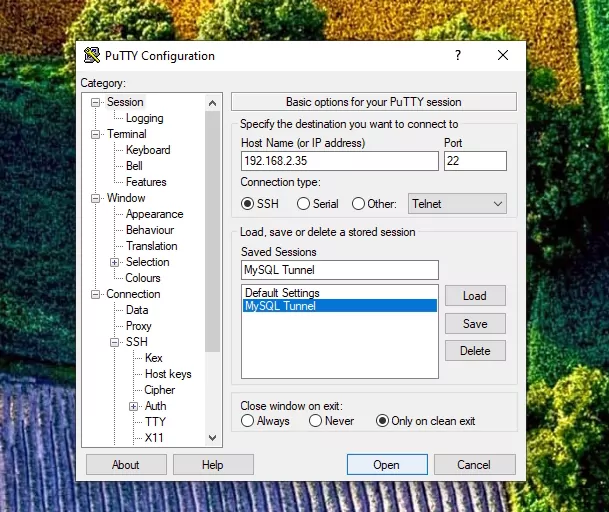
A new window will open that will ask for your username and password. After you input your username and password, you will be logged in to the server, and the SSH tunnel will be created.
After following those steps, you can connect to the MySQL server from the desired remote location.
I recommend you set up a public key authentication on the MySQL server because it is more secure and allows you to connect to the server without entering a password.
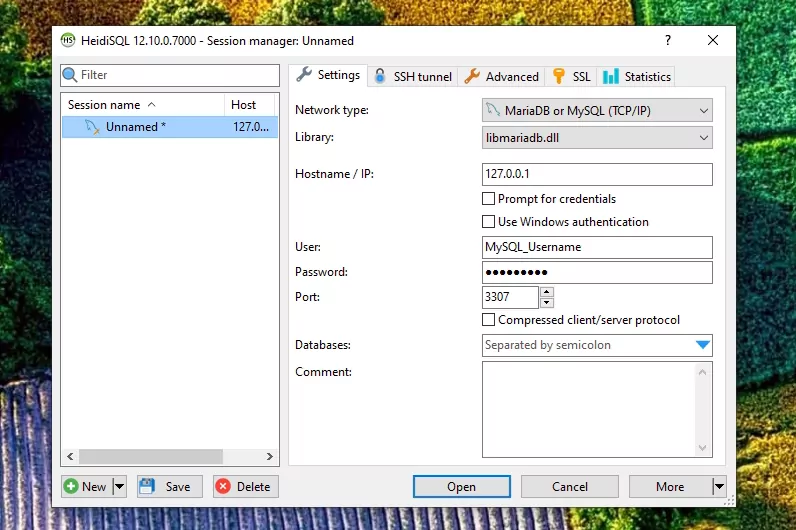
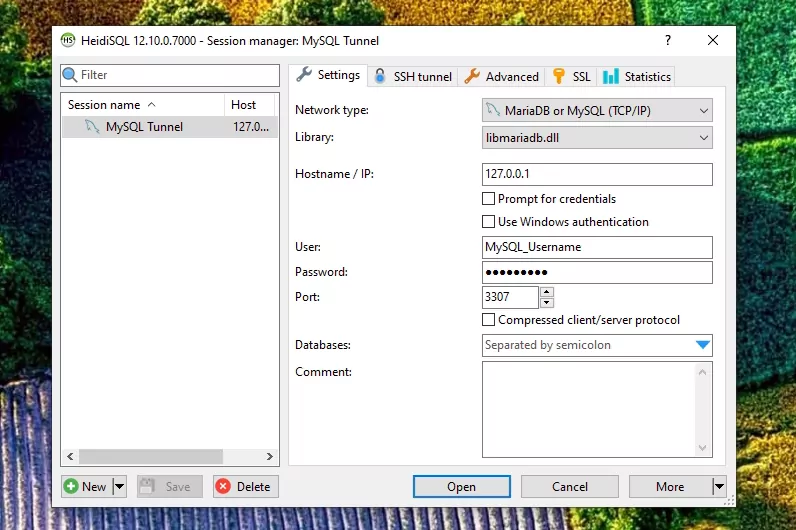
For example, if you use HeidiSQL, here are the settings to connect to your new MySQL SSH Tunnel:
1. Click New , enter 127.0.0.1 in the Hostname / IP field and the MySQL user and password in the User and Password fields:
2. Right-click on the Unnamed and input your desired name. Then, click on the Save button to save the session so you don’t need to input the same settings whenever you want to access your MySQL server:
Troubleshooting Common Issues
If you encounter any issues during the setup, consider the following troubleshooting tips:
- Port Conflicts: Ensure that another service is not using the local port you choose.
- Firewall Settings: Check that your firewall or security groups allow traffic on the ports you use.
- SSH Configuration: Verify that your SSH configuration permits port forwarding. You may need to modify the SSH daemon configuration (
sshd_config) on the remote server. - Credential Verification: Double-check both your SSH and MySQL credentials for accuracy.
Final Thoughts
In this tutorial, you have learned that MySQL / MariaDB listens by default on localhost , and by creating an SSH tunnel allows you to quickly and securely connect to your MySQL server from a remote location.
- #Database Security
- #mysql
- #MySQL Setup
- #Remote MySQL Connection
- #Secure Database Connection
- #Secure MySQL Access
- #SSH Tunnel
- #SSH Tunneling Guide
Comments (0)
Sign in to join the discussion
Sign in

