Enhance Your Debian Experience: A Step-by-Step Guide to Adding Color to Your Bash Shell

Customizing your command line can make your Debian experience more enjoyable and efficient. Adding color to your Bash shell improves readability and helps quickly identify different elements of your terminal environment. In this guide, we’ll walk you through the simple process of adding color to your Bash shell in Debian.
Why Add Color to Your Bash Shell?
Colorizing your Bash shell offers several benefits:
- Improved Readability: Different colors can highlight commands, directories, and errors, making it easier to navigate and manage your system.
- Enhanced Productivity: Quickly distinguish between file types and easily navigate through long directories.
- Personalization: Customize your terminal to reflect your style and preferences, making your workflow more pleasant.
Installing Necessary Packages
Before you can add color to your Bash shell, ensure that you have the necessary packages installed. Most Debian distributions come with the bash shell installed by default, but you may need to install additional tools to enable color support.
- Update Your Package List:
Open your terminal and run the following command to update your package list:
sudo apt update && sudo apt upgrade -y- Install
gitandcurl(Optional):
While not strictly necessary for adding color, these tools are often useful for managing scripts and configurations.
sudo apt install git curl -y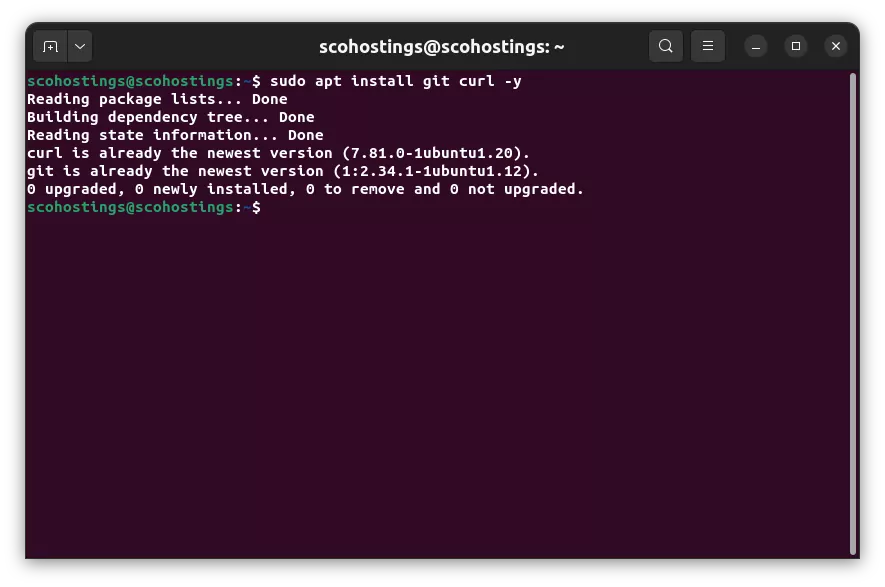 sudo apt install git curl -y
Enabling Color in .bashrc
The .bashrc file is where you can configure various settings for your Bash shell, including color schemes.
- Open
.bashrc:
Use your preferred text editor to open the.bashrcfile. For example:
nano ~/.bashrc- Enable Color Support for
ls:
Add the following lines to enable color support for thelscommand and set up a colorful prompt:
# Enable color support for ls and other commands
if [ -x /usr/bin/dircolors ]; then
test -r ~/.dircolors && eval "$(dircolors -b ~/.dircolors)" || eval "$(dircolors -b)"
alias ls='ls --color=auto'
alias grep='grep --color=auto'
alias fgrep='fgrep --color=auto'
alias egrep='egrep --color=auto'
fi
# Set a colorful prompt
PS1='\[\e[0;32m\]\u@\h:\[\e[0;34m\]\w\[\e[0m\]\$ '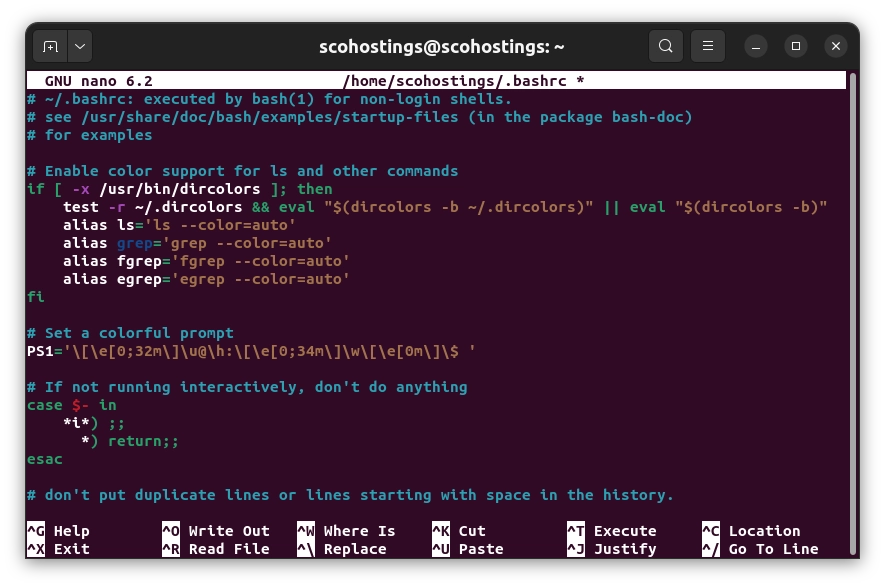 Enable Color Support for
 ls
- Save and Exit:
Save the changes and exit the text editor. Innano, you can do this by pressingCTRL + X, thenY, andEnter. - Apply the Changes:
Reload the.bashrcfile to apply the new settings:
source ~/.bashrc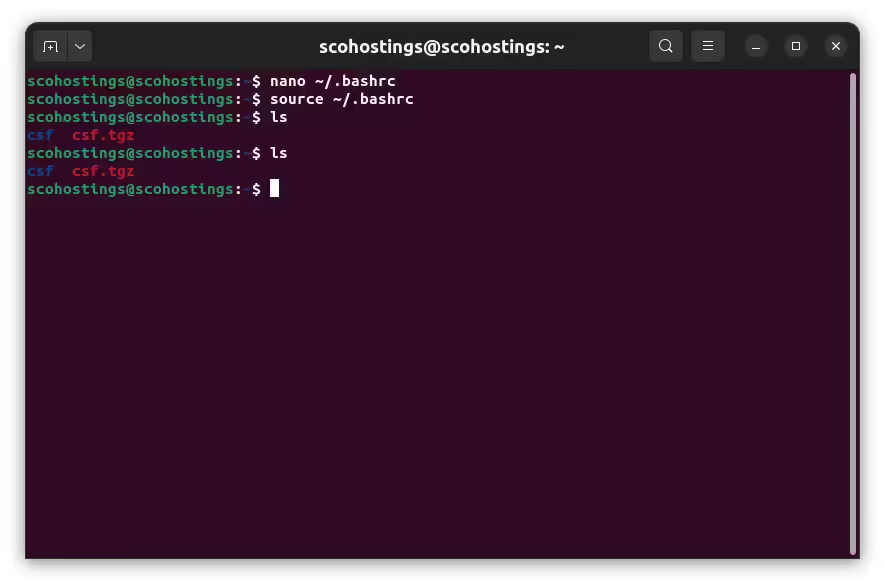 ls color result
Customizing Your Prompt Colors
The PS1 variable in the .bashrc file defines the appearance of your prompt. You can customize it to include different colors and information.
- Understand the Color Codes:
\[\e[0;32m\]sets the text color to green.\[\e[0;34m\]sets the text color to blue.\[\e[0m\]resets the text color to default.
- Modify the PS1 Variable:
You can change the colors by modifying the ANSI color codes. For example, to change the username color to cyan and the directory to magenta:
PS1='\[\e[0;36m\]\u@\h:\[\e[0;35m\]\w\[\e[0m\]\$ '- Add Additional Information:
You can include more details like the current time or Git branch. For example:
PS1='\[\e[0;32m\]\u@\h \[\e[0;33m\]\t \[\e[0;34m\]\w\[\e[0m\]\$ '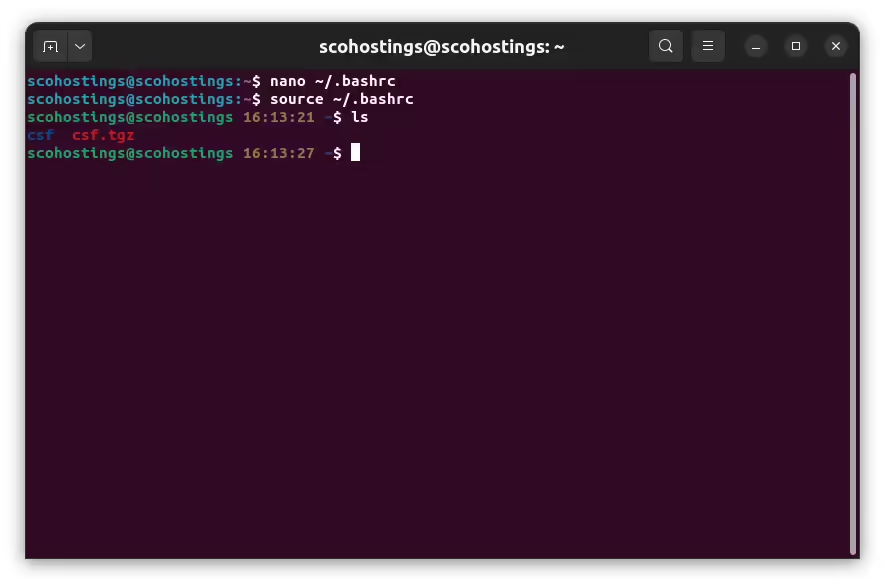 ls result with current time added
Testing Your New Bash Colors
After customizing your .bashrc, it’s essential to test the changes to ensure everything looks as expected.
- Open a New Terminal Window:
This will automatically load the updated.bashrcsettings. - List Files with
ls:
Run:
lsYou should see directories and files displayed in different colors.
- Check the Prompt:
Your prompt should now display in the colors you set, reflecting your changes to thePS1variable.
Troubleshooting Common Issues
Sometimes, color settings might not apply correctly. Here are a few troubleshooting tips:
- Ensure
dircolorsis Installed:
Verify thatdircolorsis installed by running:
which dircolorsIf it’s not installed, you can install it with:
sudo apt install coreutils- Check Terminal Compatibility:
Make sure your terminal emulator supports ANSI color codes. Most modern terminals do, but you might need to switch if you’re using an older or less common one. - Review
.bashrcSyntax:
Any syntax errors in the.bashrcfile can prevent colors from displaying correctly. Double-check your changes for accuracy.
Conclusion
Adding color to your Bash shell in Debian is a straightforward process that can significantly enhance your command line experience. Following the steps outlined in this guide, you can customize your terminal to be more readable, efficient, and visually appealing. Whether you’re a developer, system administrator, or hobbyist, these tweaks can make your interaction with Debian smoother and more enjoyable.
By implementing these changes, you improve your terminal’s aesthetics and increase your productivity by making essential information stand out. Enjoy your newly vibrant Debian Bash shell!
Comments (0)
Sign in to join the discussion
Sign in

