How to Set Up Time Synchronization on Debian

Have you ever wondered why your Debian machine sometimes seems a bit off when reporting the time? Maybe your system logs appear jumbled, or you’ve noticed that certain timed tasks don’t run as expected. The culprit behind these hiccups could very well be inaccurate system time. Just like a finely tuned watch, a Linux system thrives on precise time synchronization. And if the system time drifts too far, you can end up with everything from minor logging quirks to serious application malfunctions.
In this comprehensive guide, we’ll explore the ins and outs of setting up time synchronization on Debian. We’ll walk through different tools—like NTP (Network Time Protocol), Chrony, and systemd-timesyncd—to help you decide which one suits your needs best. Let’s dive right in!
Understanding the Importance of Time Synchronization
Time synchronization isn’t just some optional feature that “nice-to-have” servers use. It’s a foundational block that keeps your entire system stable, secure, and consistent. Every second that passes in your operating system is used to coordinate scheduled tasks, enforce security protocols, and maintain accurate logs.
Picture your system as an orchestra. Every musician (or service) needs to follow the same sheet music (system time) to keep the melody harmonious. If one musician starts playing off-beat, the entire symphony collapses into disarray. Likewise, if your server time is incorrect, tasks will run at the wrong moments, logs will be timestamped incorrectly, and cryptographic operations might fail.
The Consequences of Incorrect System Time
What actually goes wrong if your system time isn’t correct? Well, let’s break it down:
- Application Errors: Many applications depend on precise timing for features like caching, updates, or even user authentication.
- Security Vulnerabilities: Certificates, secure connections, and encryption all rely on accurate time. SSL/TLS certificates might not validate if your clock is out of sync, leading to insecure or failed connections.
- Corrupted Logs: System logs rely on timestamps to track events. A time mismatch makes debugging infinitely more complicated.
- Cron Job Chaos: Cron tasks are triggered by the system time. If your time is off, these tasks might run late, early, or not at all.
Keeping your clock on point isn’t just about having the correct hour for your timezone; it’s fundamental to your system’s overall health.
Tools for Time Management on Debian
Debian supports multiple tools for time synchronization. While they all aim for the same goal—keeping your system clock accurate—they tackle the problem in slightly different ways. Let’s take a quick look at the three main players you might consider.
NTP vs. Chrony vs. systemd-timesyncd
- NTP (Network Time Protocol): This is the tried-and-true veteran in time synchronization. It has been around for decades and remains a popular choice for many sysadmins.
- Chrony: A modern alternative that’s gaining traction. It often boasts faster synchronization and better performance in environments with variable network conditions (like laptops or servers with sporadic connectivity).
- systemd-timesyncd: A lightweight timesync daemon built into systemd. Perfect for simple setups where you don’t need advanced features like acting as an NTP server.
Key Features and Differences
- Performance: Chrony generally recovers from network disruptions more gracefully than NTP.
- Complexity: NTP can be more complex to configure if you want advanced features. Chrony’s configuration is relatively straightforward, while systemd-timesyncd is minimalistic.
- Use Cases: For most personal Debian systems, systemd-timesyncd might suffice. But if you’re running a bigger network or specialized environment, NTP or Chrony might serve you better.
Installing and Configuring NTP
If you would like to go with a time-honored solution, NTP is a great place to start. Let’s walk through how to install and configure NTP on Debian step by step.
Step 1 – Installing the NTP Package
1. Update Your System: Always begin by updating your package lists.
sudo apt-get update2. Install NTP:
sudo apt-get install ntpOnce the installation is complete, Debian will automatically start the NTP service.
Step 2 – Configuring the NTP Server
The main configuration file for NTP resides at /etc/ntp.conf. By default, it comes with a set of pool servers that should suffice for most casual setups. However, you might want to tweak it by adding or removing time servers.
1. Open the Configuration File:
sudo nano /etc/ntp.conf2. Modify Pool Servers: You can add or remove servers from the “pool.ntp.org” pools or specify your own local or preferred time servers.
3. Restrict Access: If you don’t want your server to provide time to others on the network, make sure you add appropriate restrict lines.
Step 3 – Testing and Verifying
To ensure your system is synced, use the following commands:
- Check NTP Status:
systemctl status ntp- Query Synchronization:
ntpq -pThis command shows a list of time servers your machine is polling and indicates which server is currently in sync.
That’s pretty much it. NTP will now keep your Debian system’s clock in line with global time servers.
Installing and Configuring Chrony
If you’re looking for a more modern approach, Chrony might be your best bet. Known for its agility in diverse network conditions, Chrony is a worthy alternative to NTP.
Step 1 – Installing Chrony
1. Update Your System:
sudo apt-get update2. Install Chrony:
sudo apt-get install chronyJust like with NTP, the installation process automatically starts the Chrony service.
Step 2 – Configuring Chrony
Chrony’s main configuration file resides at /etc/chrony/chrony.conf. Out of the box, it should work fine for most setups, but you can make modifications if you want better control.
1. Open the Configuration File:
sudo nano /etc/chrony/chrony.conf2. Add or Remove Servers: You’ll see lines starting with pool or server. Feel free to point Chrony toward your favorite time pools or organizational NTP servers.
Here is a list of NTP Servers.
3. Access Restrictions: If you’d rather not serve time info to other machines, ensure you add the right allow or deny directives as needed.
Once you save and exit, reload the service to apply the changes:
sudo systemctl restart chronyStep 3 – Monitoring Chrony
Chrony provides a few handy commands to check its status and performance:
- Check Chrony Status:
systemctl status chrony- Monitor Synchronization:
This shows a range of data, including the current time offset and synchronization status.
chronyc tracking- List Servers:
This command gives an overview of which servers Chrony is polling and which one is currently used for synchronization.
chronyc sourcesUsing systemd-timesyncd
For those who prefer a simple, no-frills approach, systemd-timesyncd it might be exactly what you need. It comes built-in with systemd, making it an extremely lightweight solution.
Basic Configuration
In many Debian installations, systemd-timesyncd is already installed but may not be enabled by default if another time service (like NTP or Chrony) is running. To enable it:
1. Stop Other Services: If NTP or Chrony is installed, disable or remove them first to avoid conflict.
sudo systemctl stop ntp && sudo systemctl disable ntp2. Enable systemd-timesyncd:
sudo systemctl enable systemd-timesyncd && sudo systemctl start systemd-timesyncdEdit Configuration: The main file is found at /etc/systemd/timesyncd.conf. Feel free to add your preferred NTP servers:
[Time] NTP=pool.ntp.org FallbackNTP=ntp.ubuntu.comChecking the Status
Once you’ve got systemd-timesyncd up and running, use:
timedatectl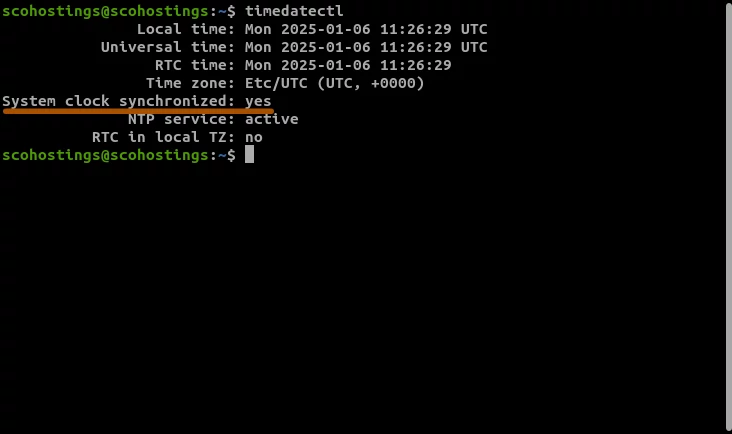
This command tells you if your system clock is synchronized. If you see “System clock synchronized: yes,” you’re good to go.
Common Troubleshooting Tips
No guide would be complete without addressing the inevitable bumps in the road. Here are some helpful tips if you run into issues.
Firewall Configuration
Time synchronization typically uses UDP port 123. If you have a firewall like UFW or iptables, make sure to allow inbound and outbound connections on port 123. For instance, with UFW:
sudo ufw allow 123/udpSync Delays and Drifts
Sometimes, synchronization might be slow, especially if your clock is drastically off by minutes or hours. Manually set the approximate time first, then let NTP, Chrony, or systemd-timesyncd fine-tune it:
sudo date -s "2025-01-01 10:00:00"After you’ve done this rough correction, your time service should be able to catch up more smoothly.
Best Practices for Secure Time Synchronization
While keeping your clock accurate is critical, you also want to ensure it remains secure. Malicious actors can exploit time discrepancies, so here are a few best practices.
Using Secure NTP Sources
Some networks offer authenticated NTP servers that use cryptographic keys or Autokey. If security is paramount for you, consider using these sources to ensure nobody can tamper with your time data in transit.
Regular Monitoring
Don’t just set it and forget it. Regularly check your system logs and monitor your time synchronization tool’s status. Tools like chronyc tracking or ntpq -p can highlight potential problems before they escalate.
Conclusion
Time synchronization may sound like a small detail, but it’s the glue that holds your Debian system together. From maintaining accurate logs to ensuring security protocols run smoothly, having the correct time is non-negotiable. Whether you stick with the classic NTP, opt for Chrony’s modern performance, or simplify your life with systemd-timesyncd, you’re taking a big step toward a more robust and dependable server environment.
At the end of the day, picking the right approach depends on your unique needs. NTP is the old standby, reliable and well-documented. Chrony offers a faster, more flexible alternative. And if you just want a set-it-and-forget-it solution, systemd-timesyncd is a minimalist’s dream. Whichever route you take, you’ll sleep better knowing your system is on the right beat with the rest of the world.
FAQs
- Is it necessary to remove NTP before installing Chrony?
While not strictly mandatory, you should avoid running both at the same time to prevent conflicts. It’s usually best to disable or uninstall NTP before installing Chrony. - Can I use Chrony and systemd-timesyncd together?
Technically, you could, but sticking with a one-time synchronization service is generally recommended. Running multiple services can cause them to compete, leading to confusion and potential offset issues. - What’s the best option for a small home server?
If you have a modest setup with minimal time-sensitive applications,systemd-timesyncdit can be perfectly sufficient. For more advanced features, Chrony is often a good middle ground. - Do I need to open any ports for outbound synchronization?
Yes, time synchronization usually occurs over UDP port 123. Make sure your firewall allows outbound traffic on this port. Inbound rules may be necessary if you’re running a time server for other devices. - How often should I check synchronization status?
Checking once a week or once a month is typically enough for most personal or small business setups. However, mission-critical servers should consider daily checks or use automated monitoring solutions to catch issues early.
- #best time sync method Debian
- #Chrony configuration
- #Debian network time protocol
- #Debian server time
- #Debian systemd-timesyncd
- #Debian time sync
- #Debian tutorial
- #How to Set Up Time Synchronization on Debian
Comments (0)
Sign in to join the discussion
Sign in

