How to Automatically Answer “Yes” When Using apt-get install

When managing Linux servers or automating system provisioning, interactive prompts can disrupt workflows. One of the most common interruptions occurs when running apt-get install, which asks users to confirm package installation by typing Yes or Y.
This guide explains how to automatically answer “Yes” when using apt-get install, ensuring seamless automation, faster deployments, and fully non-interactive package management.
Why Automatically Answer “Yes” in apt-get?
Automatically confirming package installation is essential in many real-world scenarios:
- Automated server provisioning
- CI/CD pipelines
- Docker image builds
- Configuration management tools (Ansible, Puppet, Chef)
- Cloud-init scripts
- Headless or unattended servers
Without automation, scripts may hang indefinitely waiting for user input.
The Recommended Solution: -y Flag
The best and safest way to automatically answer “Yes” is by using the -y (or --yes) flag.
Example Command
sudo apt-get install -y nginx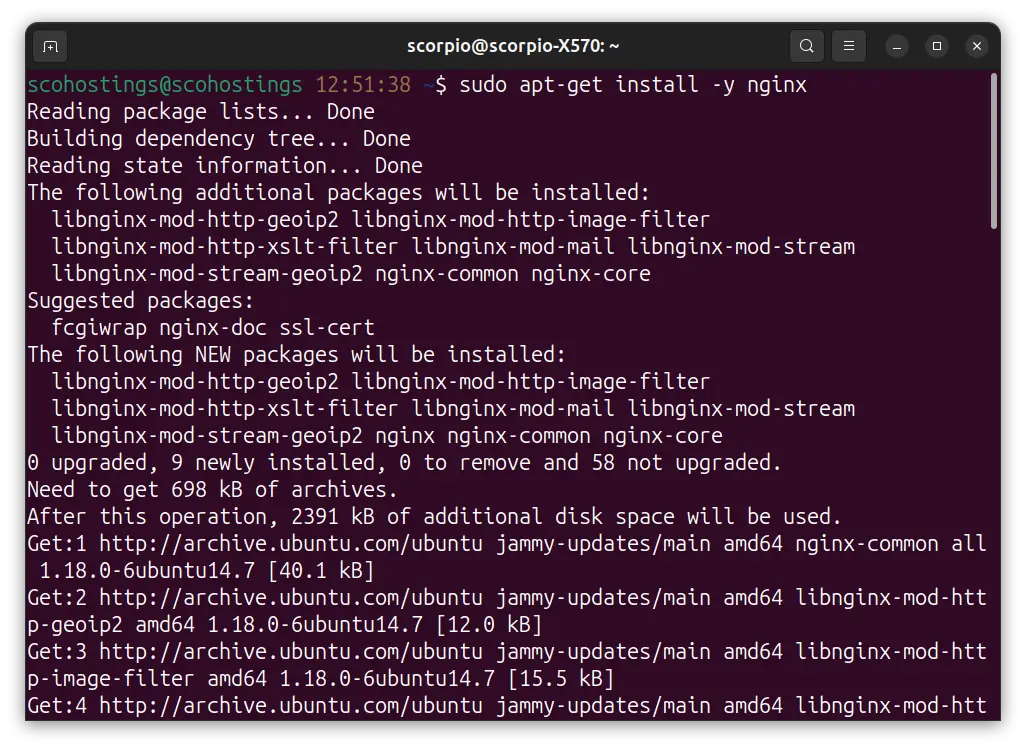
The same thing you could do when you want to remove a program.
sudo apt-get purge -y nginx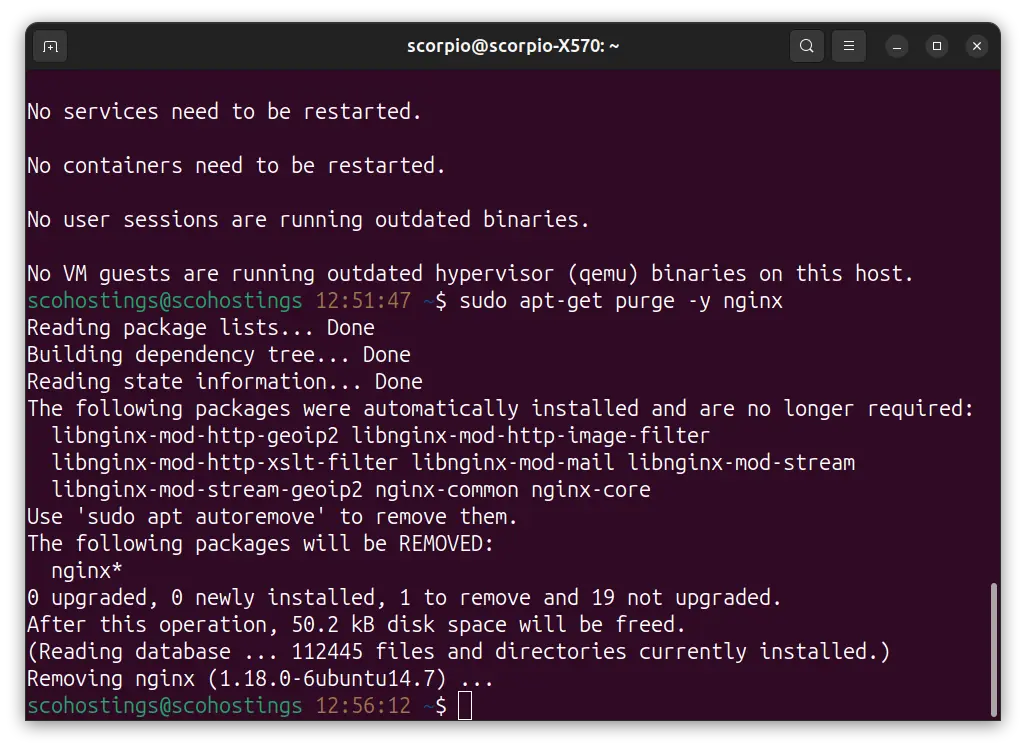
This tells apt-get to assume Yes for all prompts and continue installation without user interaction.
What the -y Flag Does
- Automatically confirms package installation
- Accepts dependency changes
- Prevents script blocking
- Maintains proper package validation
This method is officially supported and recommended for automation.
Using DEBIAN_FRONTEND=noninteractive for Full Automation
Some packages prompt for configuration options, not just confirmation. To suppress all interactive dialogs, use:
sudo DEBIAN_FRONTEND=noninteractive apt-get install -y mysql-server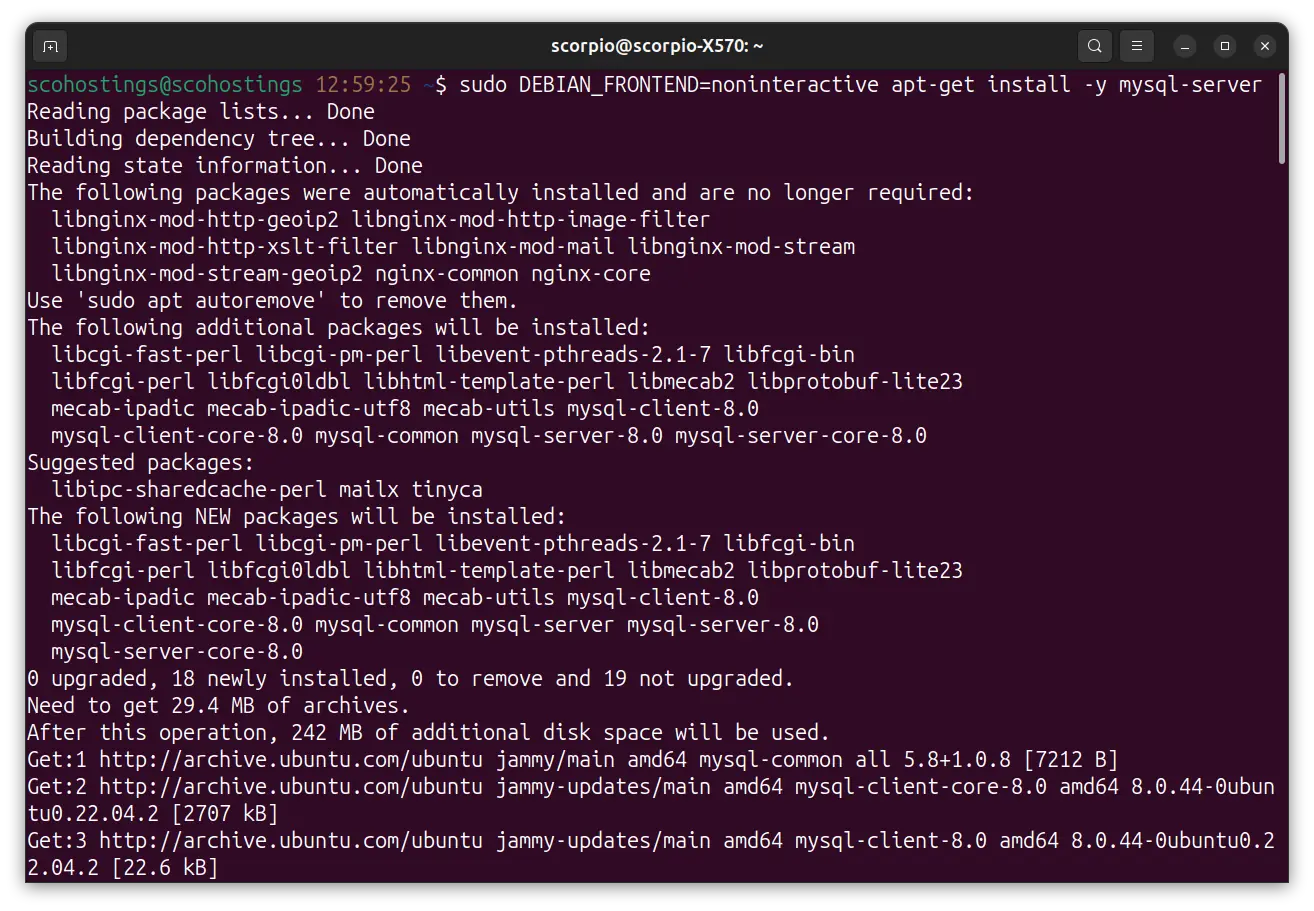
When to Use This Method
- Database servers (MySQL, PostgreSQL)
- Packages with configuration wizards
- Docker builds
- Cloud-init scripts
Important Note
While this prevents prompts, it may apply default configurations. Always review defaults for production environments.
Piping yes Command (Not Recommended)
Another method is piping the yes command:
yes | sudo apt-get install nginxWhy This Is Discouraged
- Sends unlimited “yes” responses
- Can cause unintended confirmations
- Less predictable than
-y - Poor practice in production scripts
Use this only for quick testing—not automation.
Fully Automated System Updates Example
For unattended upgrades or provisioning scripts:
sudo apt-get update && sudo apt-get upgrade -yOr fully non-interactive:
sudo DEBIAN_FRONTEND=noninteractive apt-get update && sudo apt-get upgrade -yThis ensures zero manual intervention.
Best Practices for Automated apt-get Usage
- Always use
apt-get updatebefore installs - Prefer
-yover pipingyes - Combine with
DEBIAN_FRONTEND=noninteractivewhen needed - Test scripts in staging environments
- Log output for debugging
- Avoid blind automation on production systems
Common Errors and How to Avoid Them
Package Configuration Prompts Still Appear
Solution:
sudo DEBIAN_FRONTEND=noninteractive apt-get install -y package-nameScript Hangs During Installation
Cause: Missing -y flag
Fix: Always include -y
Broken Dependencies
Fix:
sudo apt-get install -f -yConclusion
Automatically answering “Yes” when using apt-get install is essential for modern Linux automation. The -y flag is the recommended approach, while DEBIAN_FRONTEND=noninteractive ensures full non-interactive operation when configuration prompts are involved.
By following the methods outlined in this guide, you can build robust, unattended, and production-ready Linux automation workflows.
Comments (0)
Sign in to join the discussion
Sign in

