How to Change DNS Server List in Linux

Proper DNS (Domain Name System) configuration is essential for reliable network connectivity on Linux systems. Adjusting the DNS server list can enhance speed, security, and the overall browsing experience. In this step-by-step guide, we’ll show you how to change the DNS server list in Linux efficiently, covering both legacy and modern configurations.
Table of Contents
- Understanding DNS in Linux
- Checking Current DNS Settings
- Updating DNS in
/etc/resolv.conf - Using systemd-resolved
- Configuring DNS with NetworkManager
- Netplan on Ubuntu Systems
- Efficient Tips for Managing DNS
- Conclusion
Understanding DNS in Linux
DNS translates domain names into IP addresses, enabling user-friendly browsing. Linux systems query DNS servers listed in configuration files or managed by services such as systemd-resolved or NetworkManager. Understanding how Linux determines which DNS servers to use is key to maintaining stable and efficient network operations.
Checking Current DNS Settings
Before making changes, it’s wise to know which DNS servers are currently in use. On most Linux distributions, you can inspect the DNS settings by viewing /etc/resolv.conf or using networking tools.
cat /etc/resolv.conf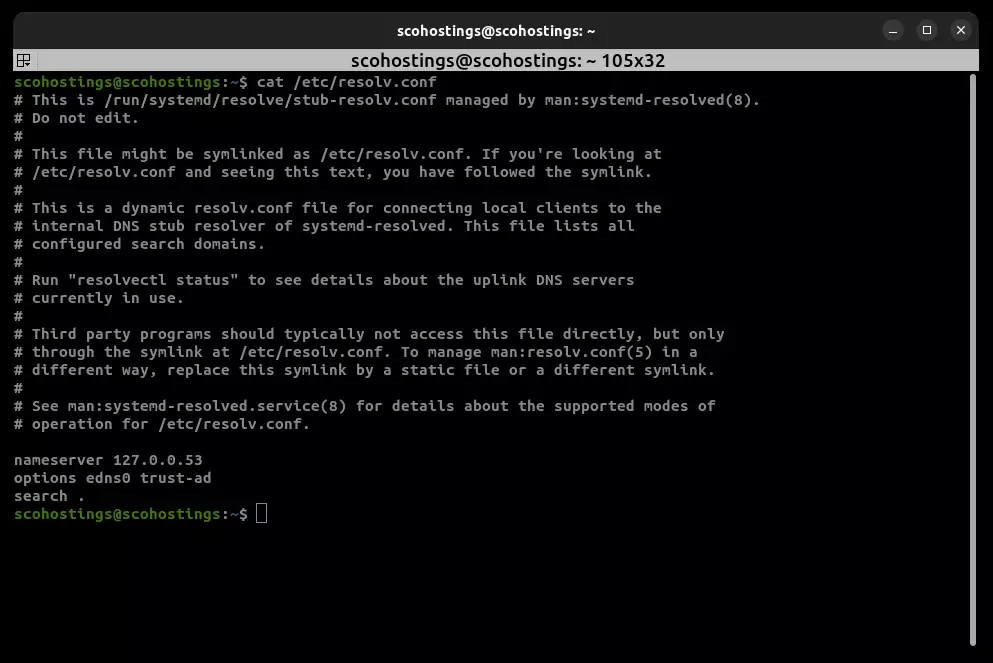
This command displays the current nameservers your system is using.
Updating DNS in /etc/resolv.conf
The /etc/resolv.conf file traditionally holds DNS server entries. On many systems, this file is dynamically managed by other services. However, if you control it directly, you can edit it as follows:
sudo nano /etc/resolv.conf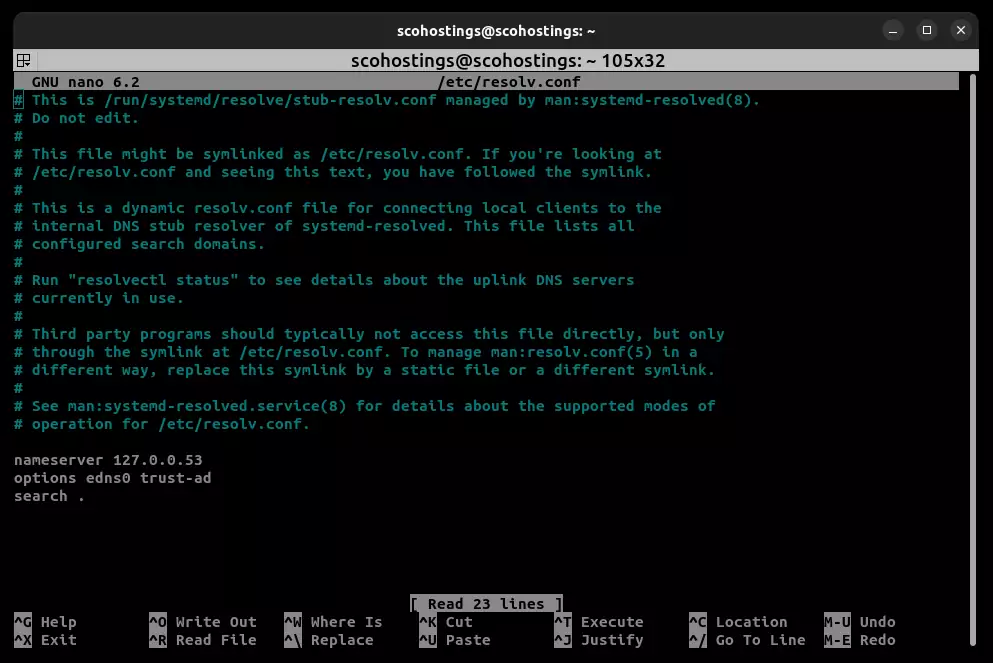
Add or modify the nameserver lines:
nameserver 8.8.8.8
nameserver 1.1.1.1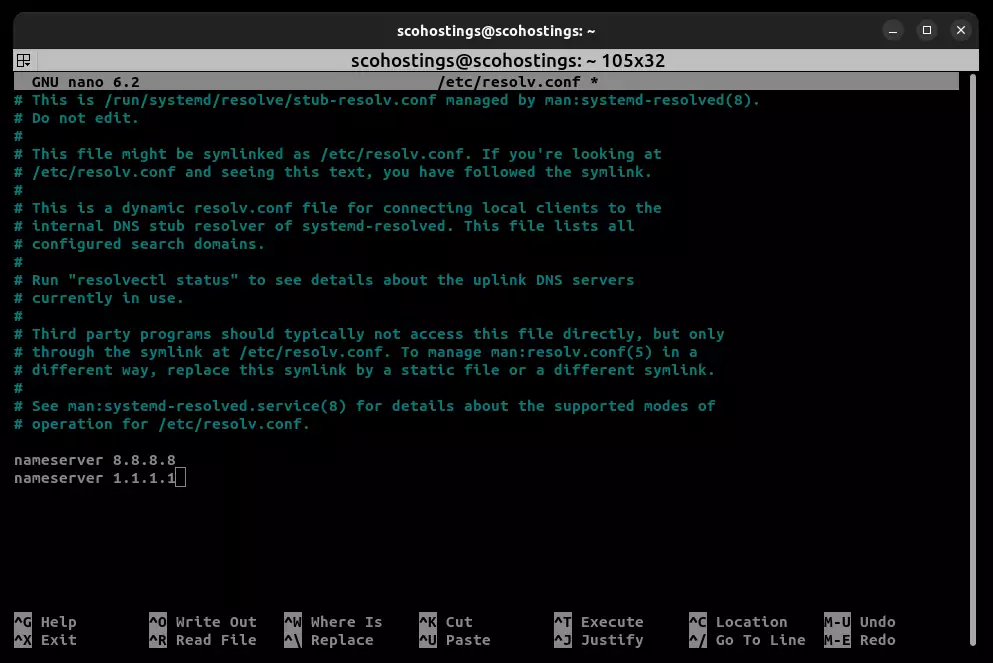
Save and exit the editor. Changes are immediate but note that this file may be overwritten by network services on reboot. For persistent changes, integrate with your distribution’s network management tools or use chattr to make the file immutable (not recommended in most cases).
Using systemd-resolved
On systems with systemd-resolved, DNS configuration can be managed via the /etc/resolv.conf symlink or /etc/systemd/resolved.conf file:
sudo nano /etc/systemd/resolved.conf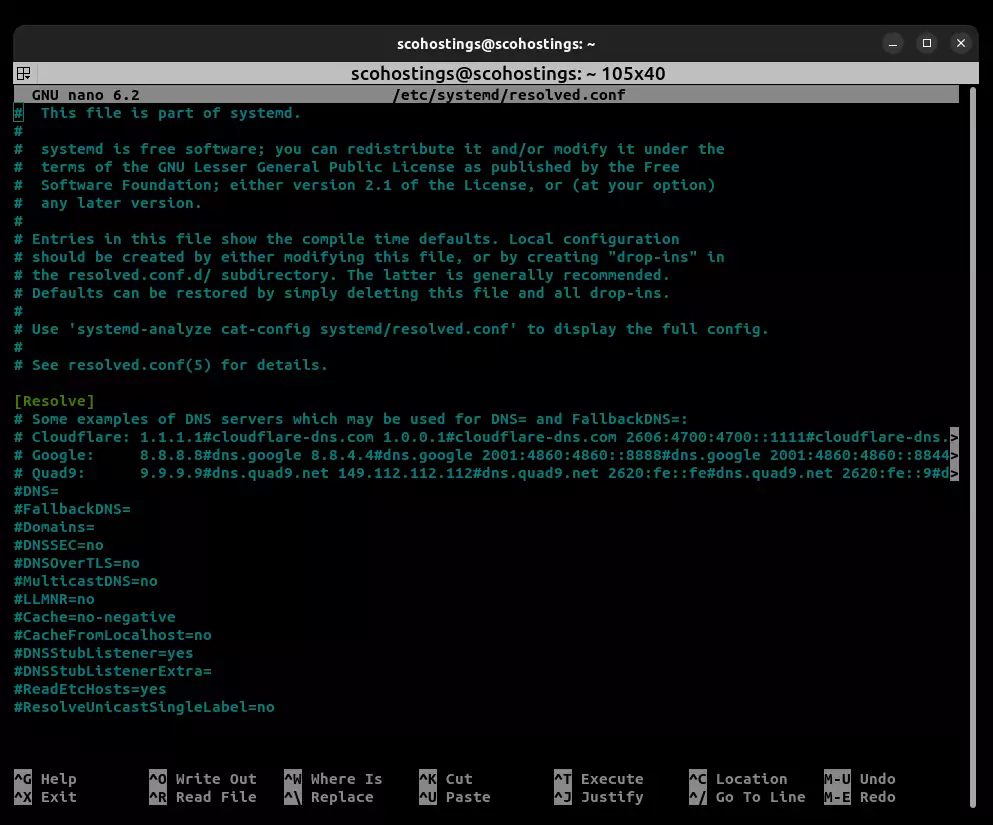
Edit the configuration to specify DNS servers:
[Resolve]
DNS=8.8.8.8 1.1.1.1
FallbackDNS=8.8.4.4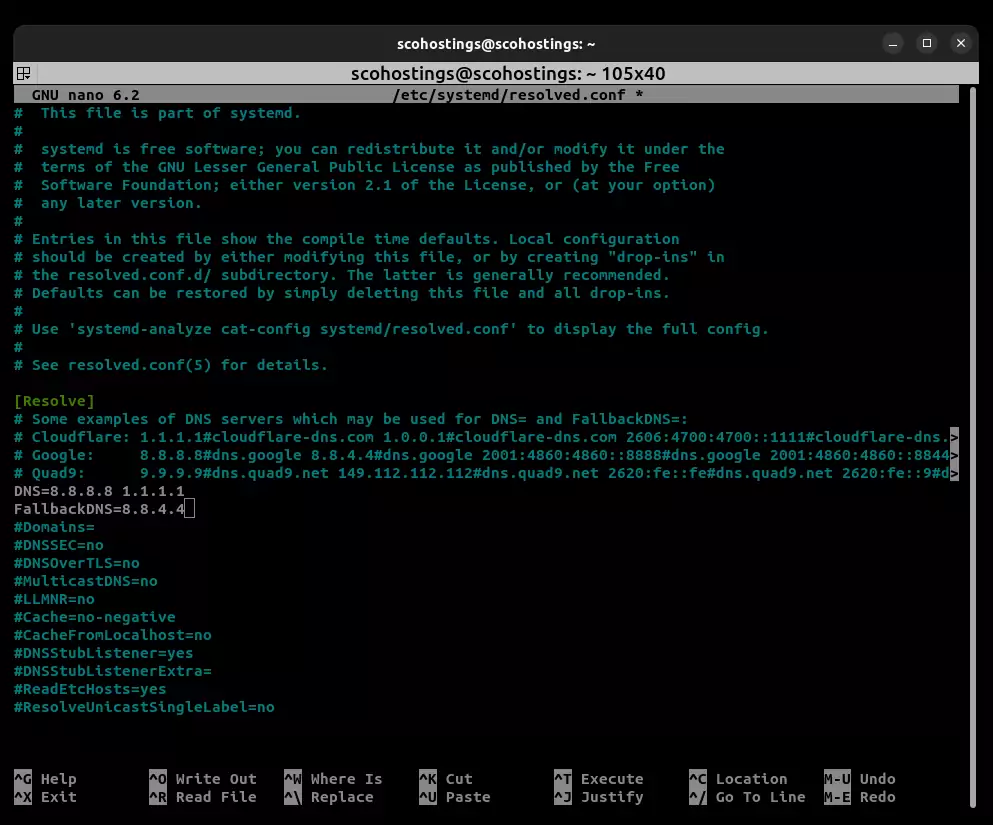
Then restart the service:
sudo systemctl restart systemd-resolvedConfiguring DNS with NetworkManager
NetworkManager can manage DNS settings for network interfaces. If you’re using a GUI, you can update DNS servers via Network Settings. For CLI-based configurations, use the nmcli command:
nmcli connection modify "Wired connection 1" ipv4.dns "8.8.8.8 1.1.1.1"
nmcli connection up "Wired connection 1"This modifies the chosen connection’s DNS servers. Check the updated DNS list using:
nmcli device show | grep IP4.DNSNetplan on Ubuntu Systems
Ubuntu uses netplan for network configuration. You can define DNS servers in .yaml files under /etc/netplan/:
sudo nano /etc/netplan/01-network-manager-all.yamlAdd DNS entries under the nameservers section:
network:
version: 2
renderer: NetworkManager
ethernets:
eth0:
dhcp4: yes
nameservers:
addresses: [8.8.8.8, 1.1.1.1]Apply the changes:
sudo netplan applyEfficient Tips for Managing DNS
- Use a DNS Cache: Deploy tools like
dnsmasqorunboundto cache DNS responses and speed up lookups. - Monitor DNS Performance: Use commands like
digto test response times and ensure the DNS servers you’ve chosen are responsive. - Automate with Scripts: If you frequently switch DNS servers (e.g., in different networks), consider using simple scripts or aliases to update your configuration quickly.
- Backup Configurations: Always back up your configuration files before making changes. This ensures you can revert if something goes wrong.
Conclusion
Changing DNS server lists in Linux can significantly improve your network’s performance and reliability. Whether you’re editing /etc/resolv.conf, leveraging systemd-resolved, or using advanced tools like NetworkManager or netplan, understanding the available methods is key. With the tips provided above, you can manage and optimize your DNS configurations efficiently.
- #Change DNS server
- #Change DNS server in Linux
- #DNS configuration
- #DNS management Linux
- #DNS servers
- #Linux DNS
- #Linux DNS configuration
- #Linux networking
Comments (0)
Sign in to join the discussion
Sign in

